Installing Omni Connectors
By default, no Omni connectors are installed. Install the connectors you need from Settings > Licensing.
The Package Information Section
Navigate to the Settings > Licensing page.
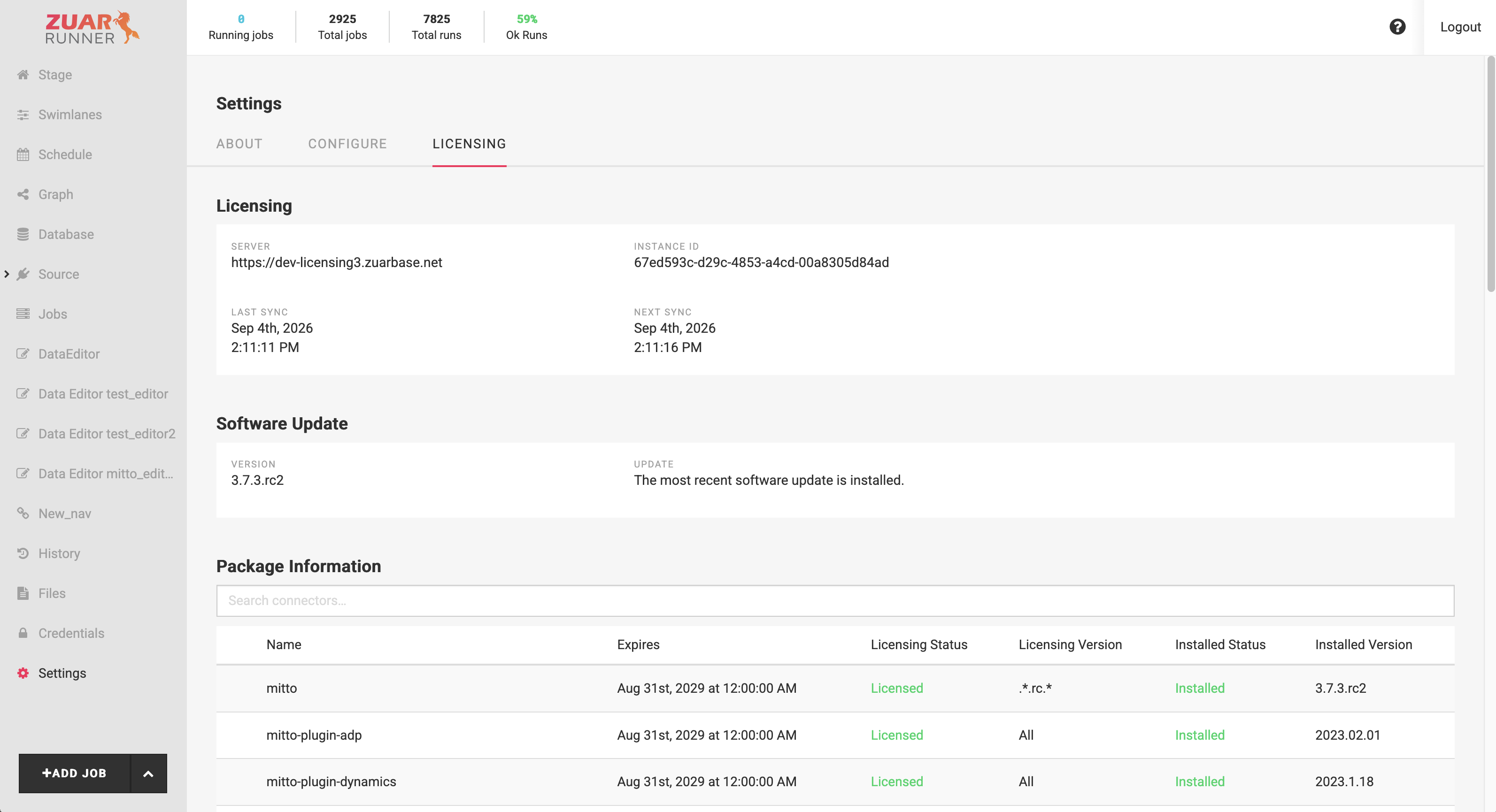
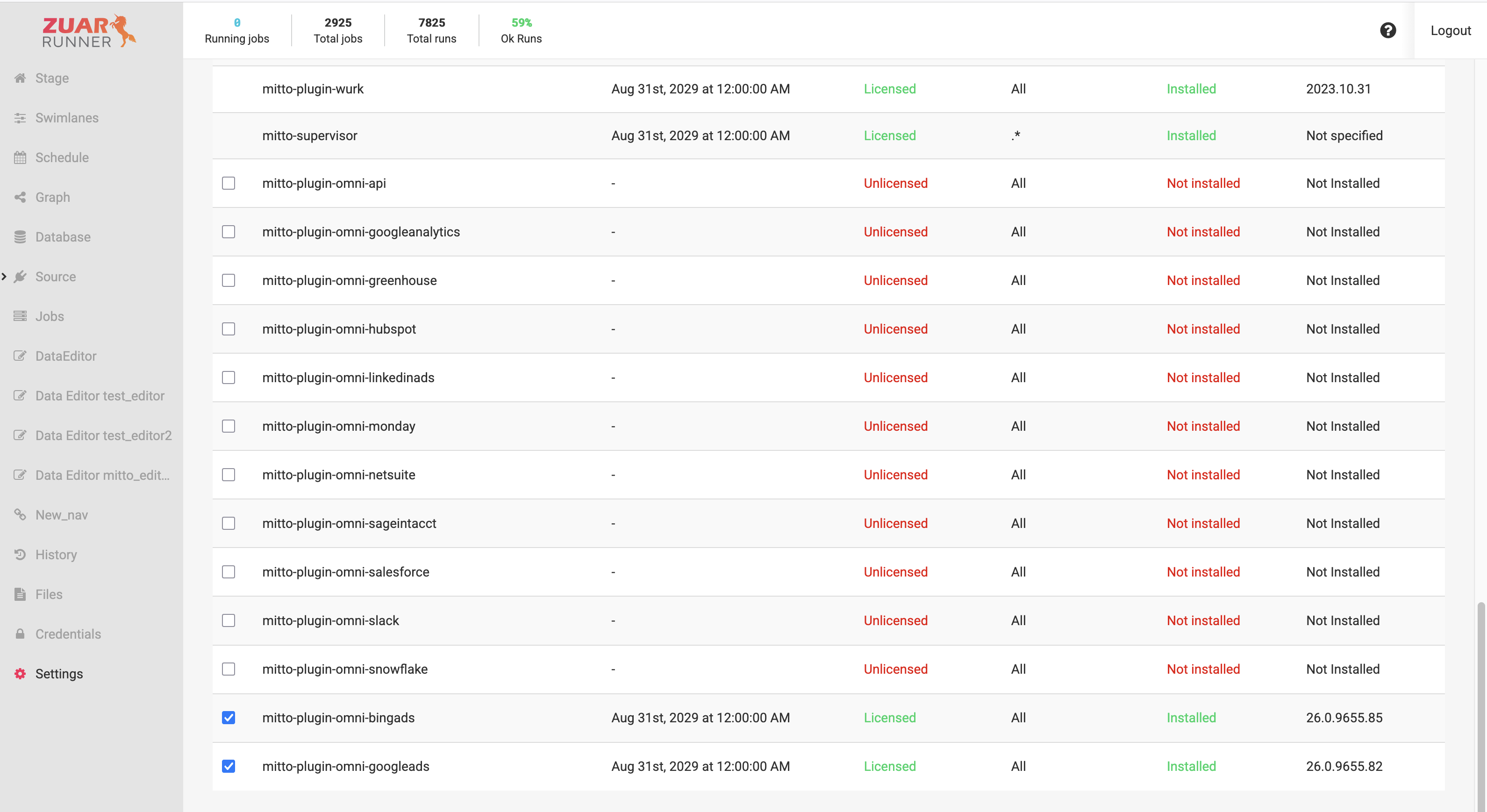
Omni connectors are listed at the bottom of the Package Information section, below
Runner’s other installed packages. Each Omni connector name is prefixed with
mitto-plugin-omni-. The remainder of the connector name is the name of the associated
CData Python Connector. E.g, for the Salesforce connector, the name is
mitto-plugin-omni-salesforce. Each connector row has a checkbox which is used to
select the connector for installation / uninstallation.
The Package Information below shows that no Omni connectors are currently installed.
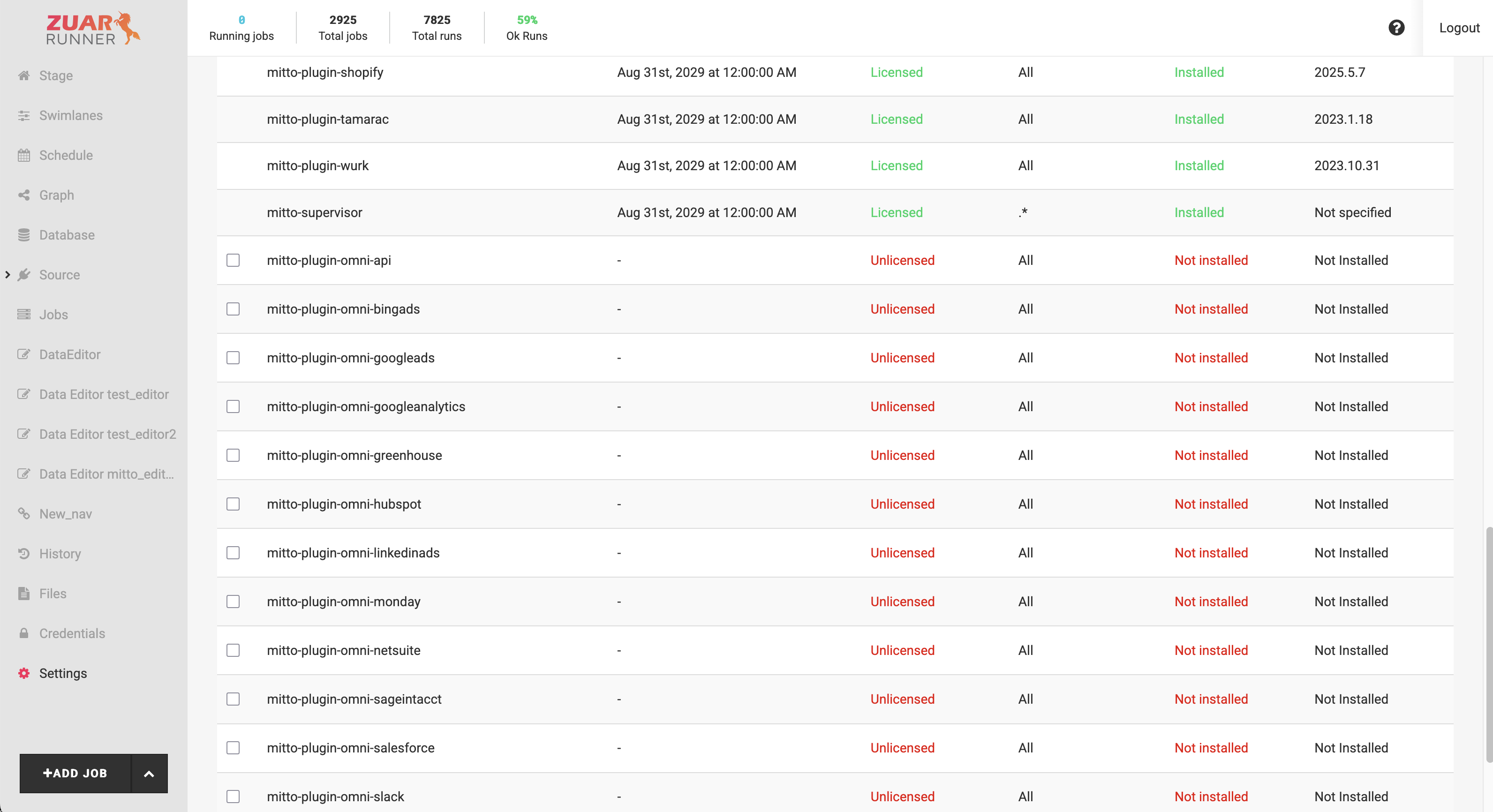
You can use the search box to filter the list by name.
Installing a Connector
Let’s install two Omni connectors: bingads and googleads.
Check the checkbox of the connectors to be installed.
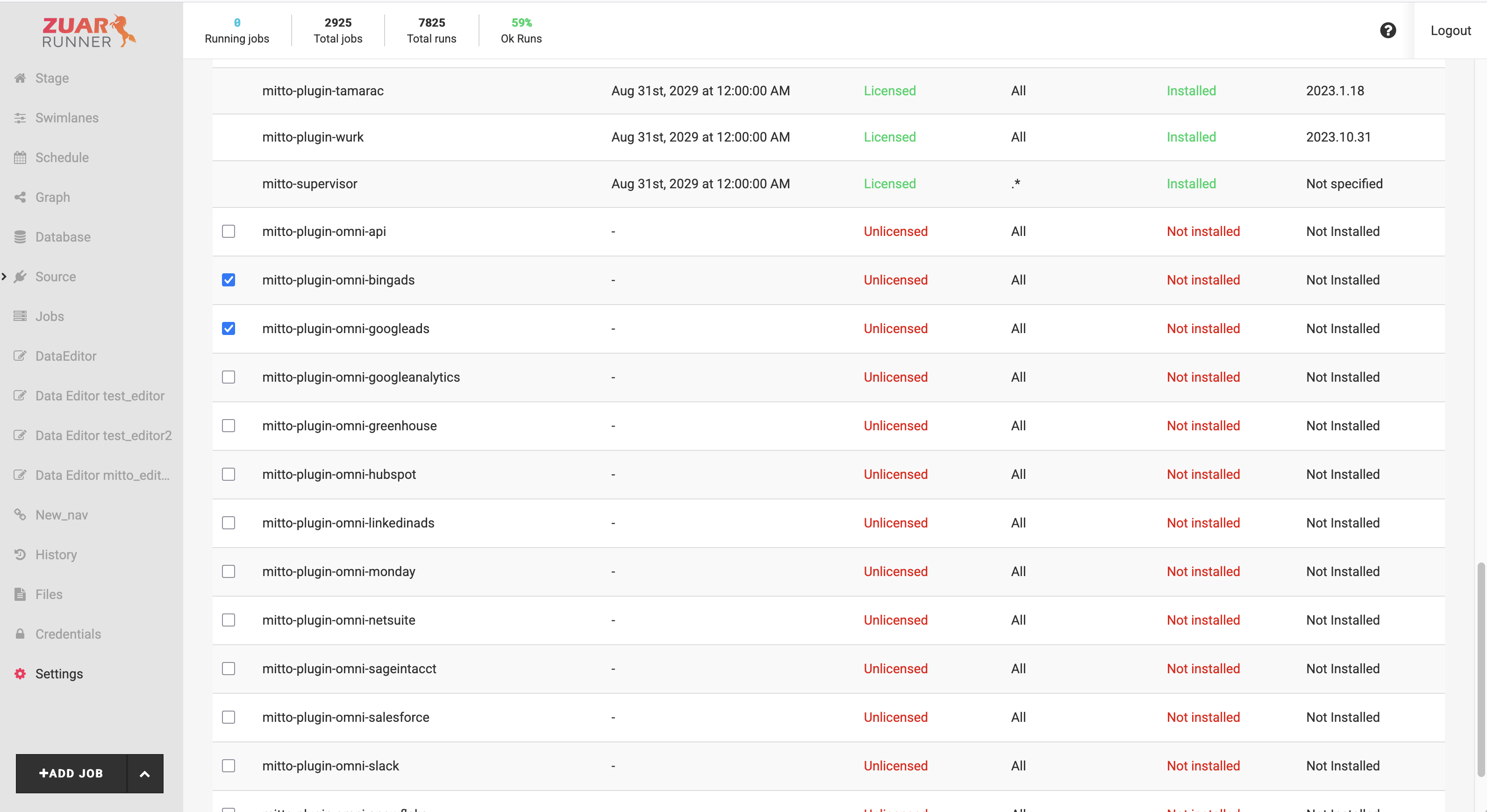
The Download button will appear. Clicking it will prepare the software to be installed. The pending changes are listed in the Update Version Details panel. Once clicked, Runner will download the connectors and prepare the update.
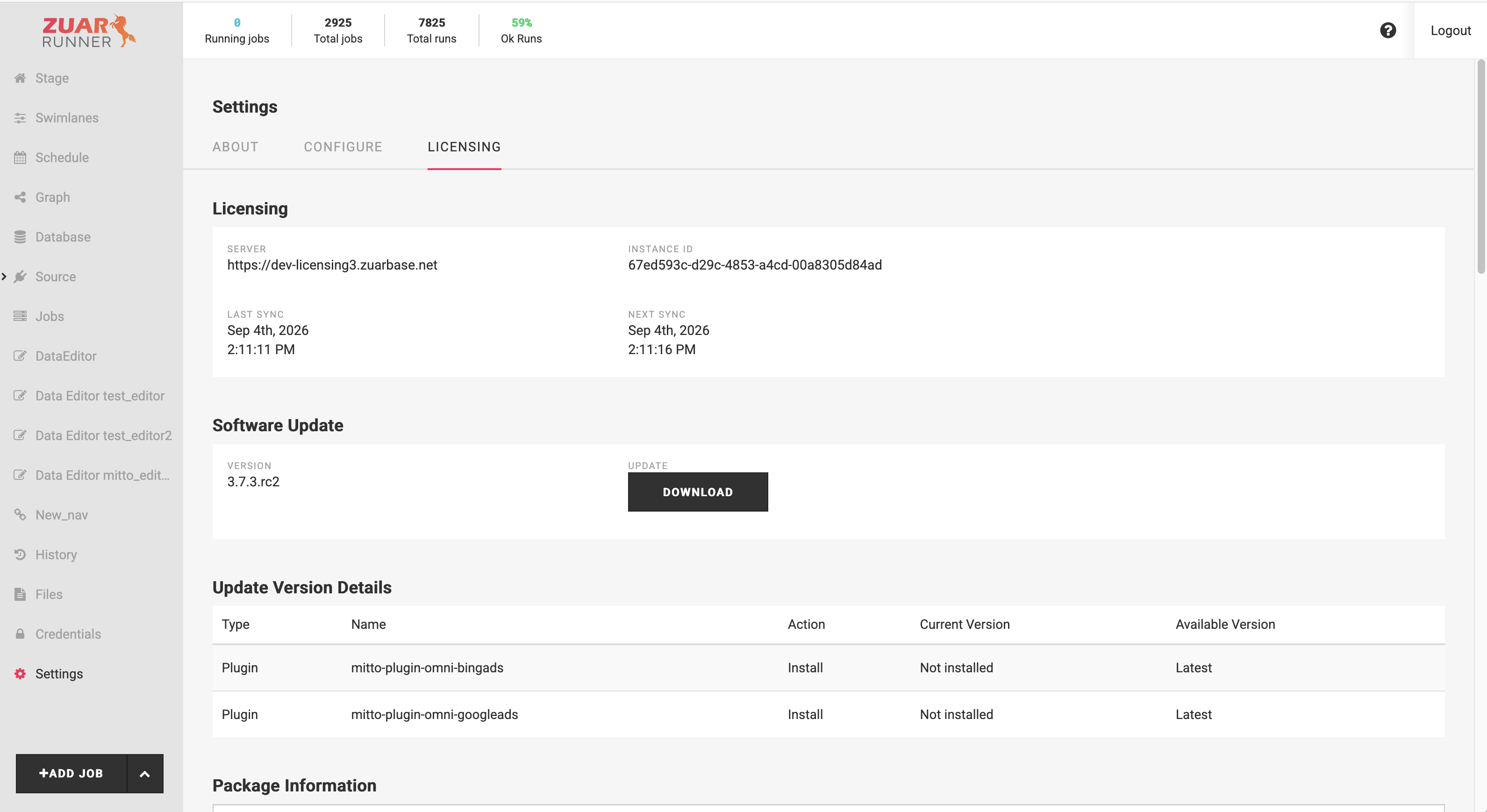
Warning
Clicking Download terminates any jobs that are currently running.
When the Restart button appears (“New software update has been downloaded. Restart to apply it.”), click it and confirm.
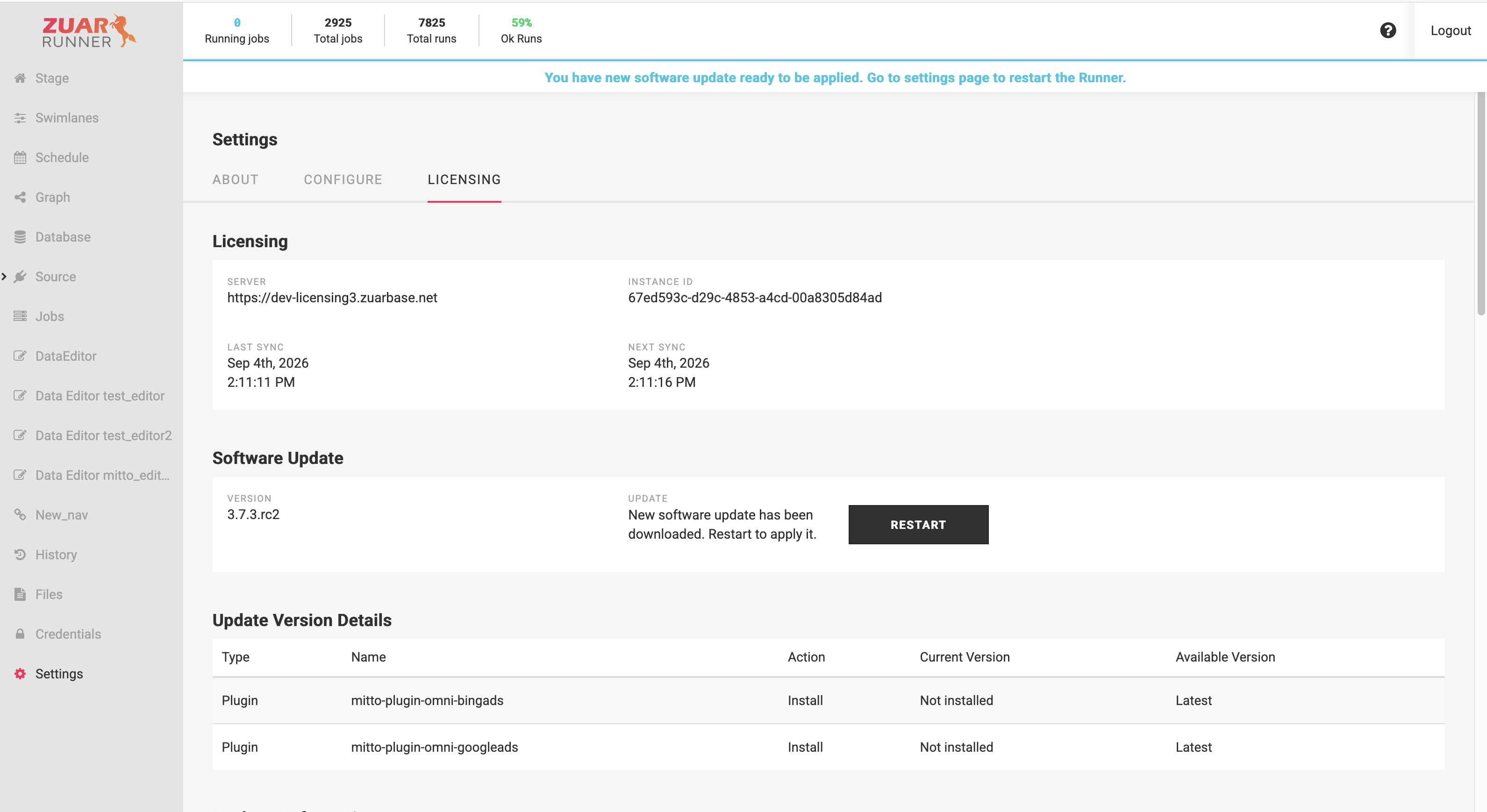
Warning
Restarting interrupts all Runner activity and can take up to 20 minutes. The page reloads automatically when Runner is back.
After the restart, each installed connector is available for use and will appear as installed in the Package Information section of the UI.
Each installed connector’s wizard icon will appear on the + Add Job page. See Creating Jobs.
Removing a Connector
To remove a connector, uncheck its checkbox and click Download, then Restart when prompted. Removing a connector also removes its wizard from the + Add Job page.
Warning
Jobs that use a removed connector remain in Runner but fail with a licensing error when run. Delete or disable those jobs, or reinstall the connector.
Status Messages
The Licensing page shows the current update state above the package list:
Message |
Meaning |
|---|---|
The most recent software update is installed. |
Nothing to do. |
You have new software update available to download. |
Click Download. |
New software update is on the way. |
Download/install in progress. |
New software update has been downloaded. Restart to apply it. |
Click Restart. |
Disabled Connectors
A connector that is installed but not licensed appears as Disabled. Its wizard icon moves to the Disabled group on the + Add Job page, and clicking the icon opens Settings. Contact Zuar support if a connector you expect to be licensed shows as Disabled.
Missing Connectors
If you are expecting to be able to install a specific Omni connector on your instance but can’t find it in the list of available connecotors, please contact Zuar support for assistance.