This documentation describes an old release, version 3.7.1. Documentation for the latest release, 3.7.2, can be found here.
Configuring Omni Connector Jobs
In most cases, jobs created by an Omni connector wizard can be run immediately, with no further configuration. This page describes the job configuration for cases where you want to customize job behavior.
To edit a job’s configuration, open the job and click Edit on the config. The
configuration is JSON with the standard Runner job sections: input, output, and
steps.
Anatomy of a Generated Job
The wizard creates one job per selected table. For example, for the Salesforce Account
table:
{
    "name": "salesforce_account",
    "title": "[Salesforce] Account",
    "type": "io",
    "input": {
        "use": "omni_salesforce.iov2.input#OmniConnectorInput",
        "table": "Account",
        "credentials": "my_salesforce_credentials"
    },
    "output": {
        "use": "call:mitto.iov2.db#todb",
        "dbo": "analytics_database",
        "schema": "salesforce",
        "tablename": "account"
    },
    "steps": [
        {
            "use": "mitto.iov2.steps#Input",
            "transforms": [
                {"use": "mitto.iov2.transform#ExtraColumnsTransform"},
                {"use": "mitto.iov2.transform#ColumnsTransform"}
            ]
        },
        {"use": "mitto.iov2.steps#CreateTable"},
        {
            "use": "mitto.iov2.steps#Output",
            "transforms": [
                {"use": "mitto.iov2.transform#FlattenTransform"}
            ]
        },
        {"use": "mitto.iov2.steps#CollectMeta"}
    ],
    "tags": ["omni", "salesforce"]
}
By default the job truncates the destination table and reloads it in full on every run.
Input Parameters
Every Omni connector job supports the same input parameters:
Parameter |
Type |
Required |
Description |
|---|---|---|---|
|
string |
yes |
The table to load, as named by the connector. |
|
string |
yes |
Name of the stored credentials to connect with. |
|
string |
no |
Custom SQL to run instead of loading |
|
integer |
no |
Maximum rows to load. Useful for testing. |
|
object |
no |
Additional connection properties. |
|
integer |
no |
Driver log verbosity, 1-5. See Troubleshooting. |
|
boolean |
no |
Write a standalone driver log file. |
Parameter interactions to be aware of:
When
queryis set, the job runs the query as-is:table,limit, and upsert timestamp filtering are ignored.tableis still required and must remain in the config.Values in
connection_optionsoverride same-named values from the stored credentials.
The query Parameter
The query parameter replaces the default SELECT * FROM <table> with SQL you provide.
The SQL is evaluated by the connector, so it can use the connector’s SQL functions and
can only reference that connector’s tables. See the connector’s reference documentation
(linked from the Connectors page) for supported syntax,
functions, and columns.
Because SQL expressions such as DATEADD(...) are evaluated by the connector each time the
job runs, a query like this provides a rolling time window without ever needing to be
regenerated. Let’s add the following query to a default GLDETAIL job.
Query:
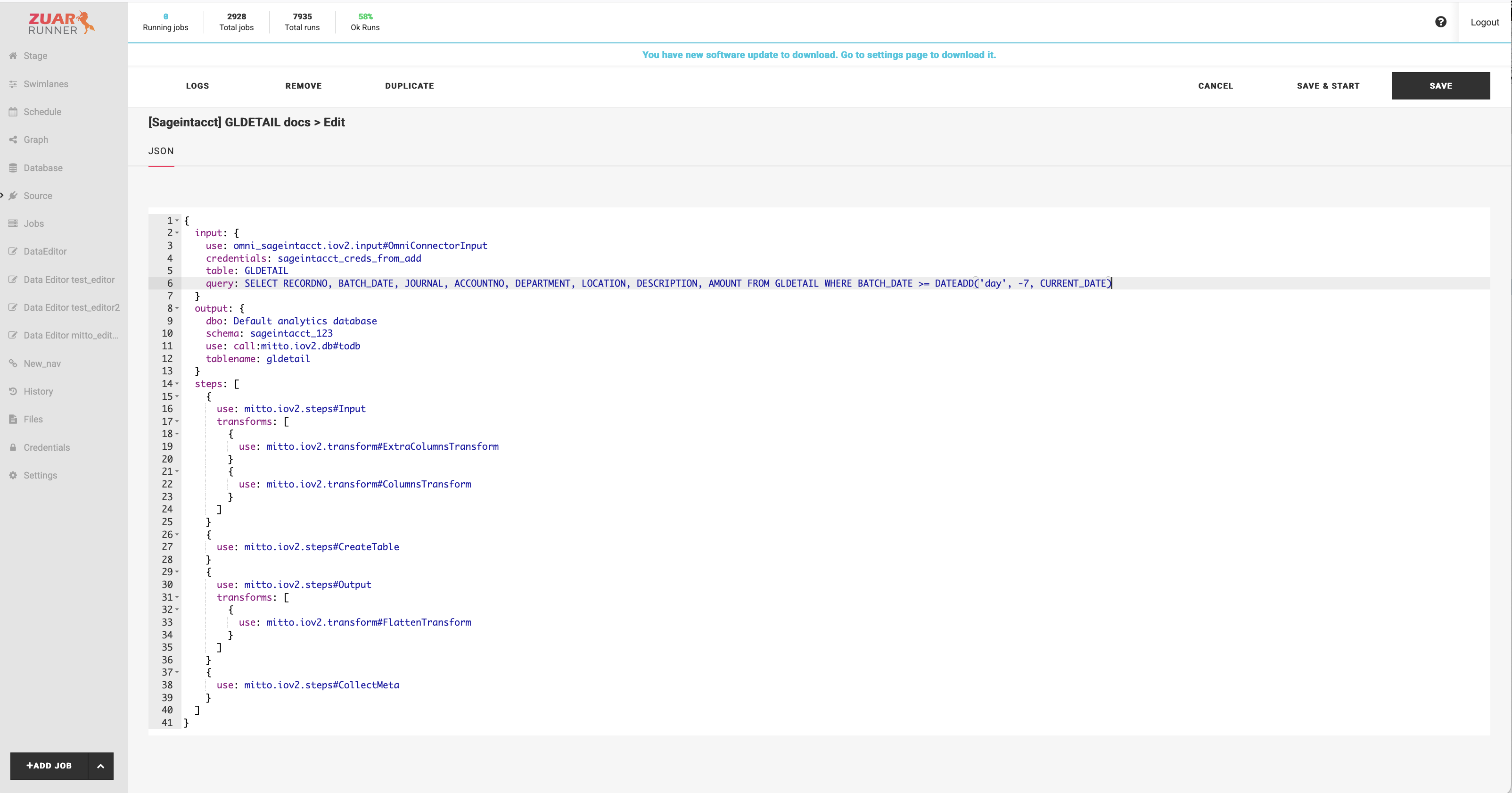
SELECT RECORDNO, BATCH_DATE, JOURNAL, ACCOUNTNO, DEPARTMENT, LOCATION, DESCRIPTION, AMOUNT FROM GLDETAIL WHERE BATCH_DATE >= DATEADD('day', -7, CURRENT_DATE)
By default, the query parameter will not be present.
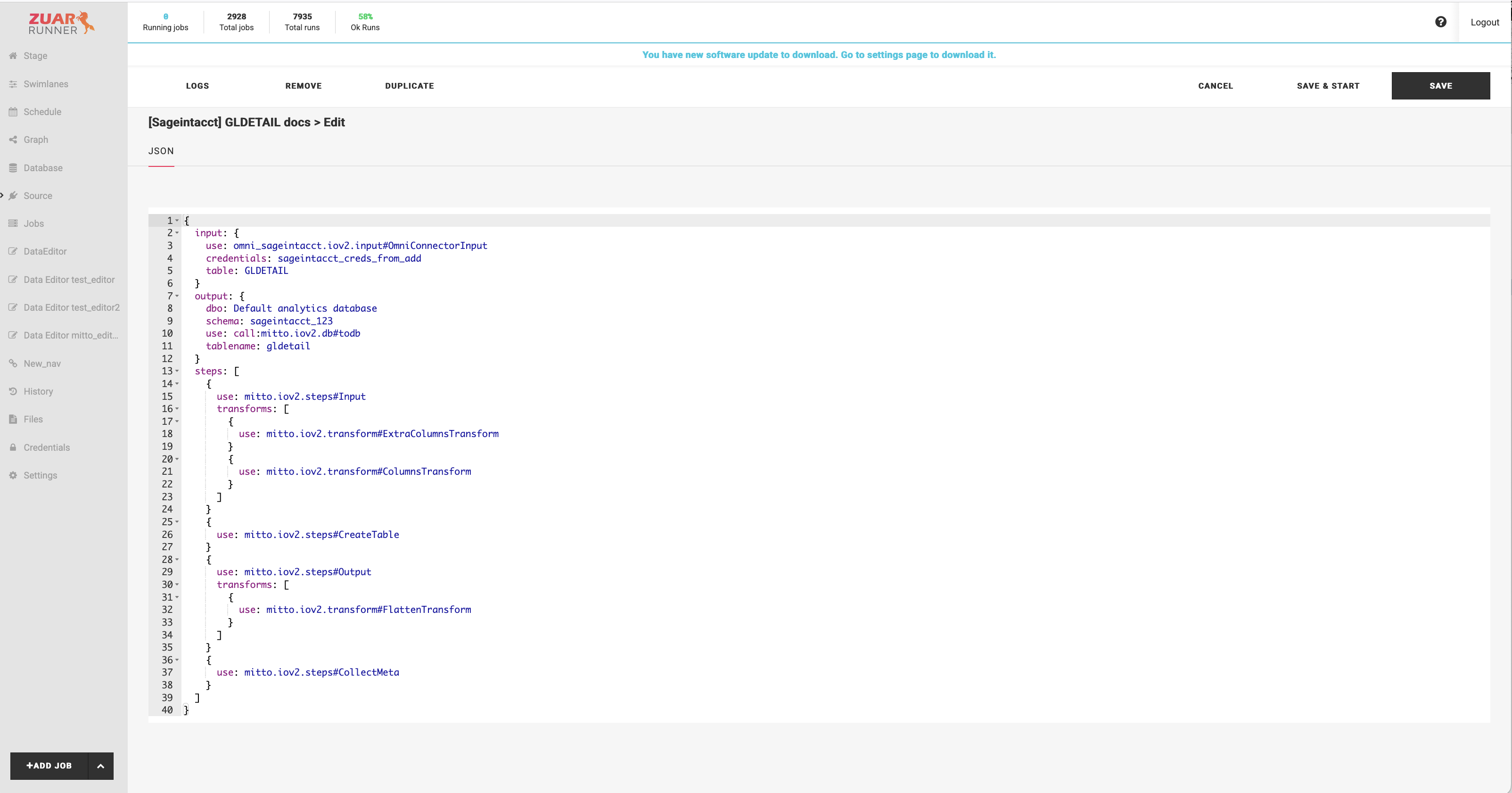
Add the query to the job configuration so that it looks like the following:
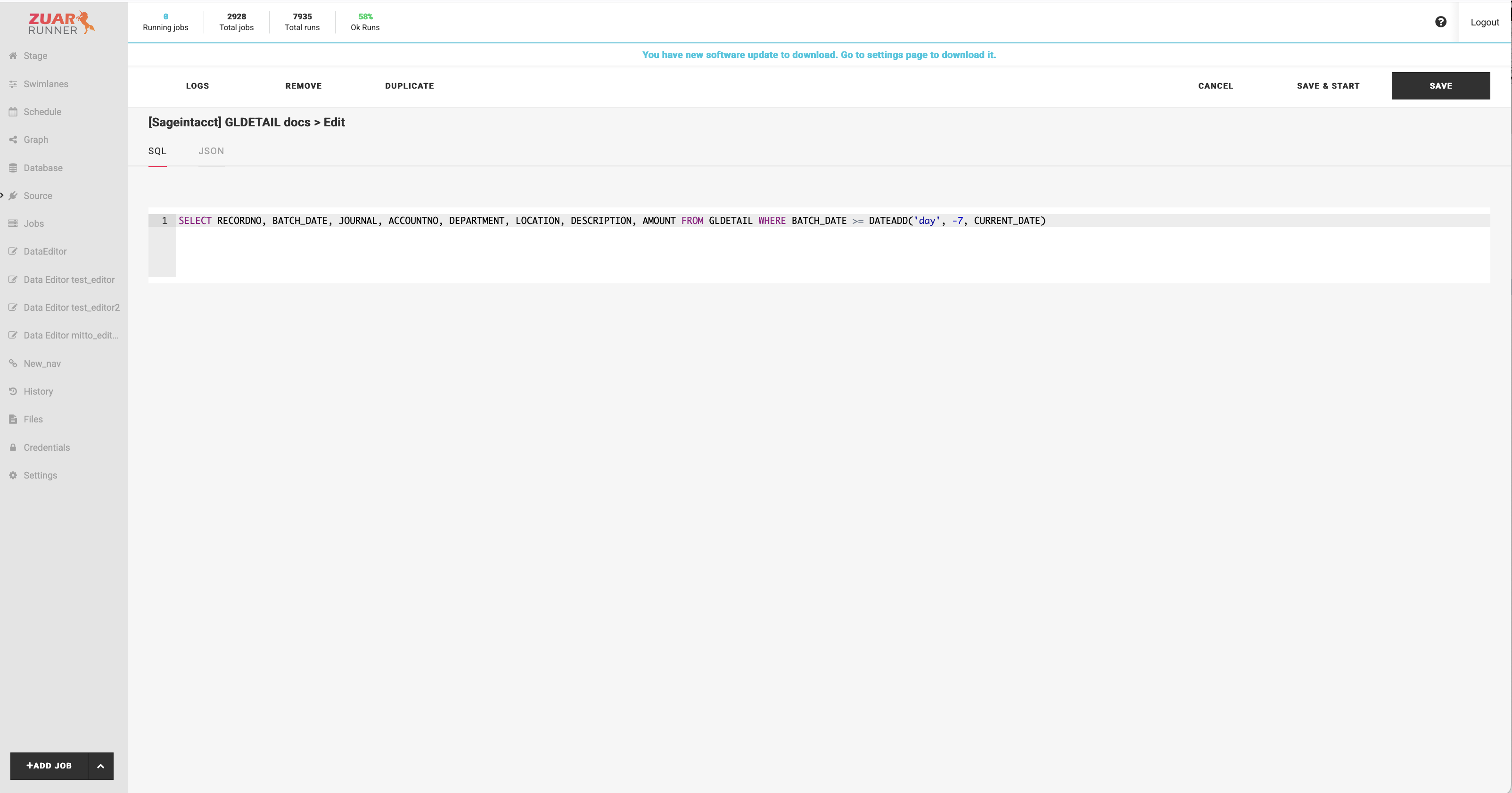
Once a query is present in the job config, the job editor shows a SQL tab, which
provides a more convenient editor for the SQL.
Note
A rolling-window query loads only the rows inside the window. Combine it with upsert (below) so previously loaded rows outside the window are kept; without upsert, each run truncates the destination table and only the window remains.
The connection_options Parameter
connection_options passes additional connection properties to the connector, merged on
top of the stored credentials. Use it for job-specific settings that do not belong in the
shared credentials. The available properties are listed in each connector’s reference
documentation.
For example, the Monday connector names its tables after your boards, and those names can contain emoji or other special characters. Disabling display names lets the job use the board’s internal name instead:
"input": {
    "use": "omni_monday.iov2.input#OmniConnectorInput",
    "table": "Board_18379672381",
    "credentials": "my_monday_credentials",
    "connection_options": {
        "UseDisplayTableNames": "False"
    }
}
Credentials-related properties should stay in the stored credentials; use
connection_options only for settings that vary per job.
Upsert
Upsert works the same for Omni connector jobs as for other Runner jobs: add a store
section to the job config, with a key that uniquely identifies a row. The job then
keeps a store of the source records, each run pulls only new
and changed rows from the service and merges them into the store by key, and the
destination table is loaded from the store. See Upsert for
upsert concepts.
A complete Omni job configured for upsert:
{
    "name": "salesforce_account",
    "title": "[Salesforce] Account",
    "type": "io",
    "input": {
        "use": "omni_salesforce.iov2.input#OmniConnectorInput",
        "table": "Account",
        "credentials": "my_salesforce_credentials"
    },
    "output": {
        "use": "call:mitto.iov2.db#todb",
        "dbo": "analytics_database",
        "schema": "salesforce",
        "tablename": "account"
    },
    "steps": [
        {
            "use": "mitto.iov2.steps#Input",
            "transforms": [
                {"use": "mitto.iov2.transform#ExtraColumnsTransform"},
                {"use": "mitto.iov2.transform#ColumnsTransform"}
            ]
        },
        {"use": "mitto.iov2.steps#CreateTable"},
        {
            "use": "mitto.iov2.steps#Output",
            "transforms": [
                {"use": "mitto.iov2.transform#FlattenTransform"}
            ]
        },
        {"use": "mitto.iov2.steps#CollectMeta"}
    ],
    "store": {
        "key": ["$.Id"],
        "updated_at": "$.SystemModstamp"
    },
    "tags": ["omni", "salesforce"]
}
The steps are unchanged from the wizard-generated job; only the store section is
added.
key(required) lists the source columns that uniquely identify a row, as JSONPath expressions using the source’s column names and casing ($.Id, not$.id). Use multiple entries for a composite key.updated_atis a JSONPath for the source’s last modified column. It gives each stored record a timestamp, which is what lets later runs pull only rows changed since the newest record already in the store.The incremental pull filters on a source column detected automatically from the source table’s columns, in this priority order:
SystemModstamp,LastModifiedDate,DateLastModified,LastModifiedOn,UpdatedAt,updated_at,last_modified. If the source table has none of these, every run reads the full table (the merge by key still applies).When
queryis set, the automatic change filtering is disabled; put the time filter in the query itself (for example, a rolling window as shown above).
Scheduling
Omni jobs and sequences are scheduled like any other Runner job. See Scheduling.