Blocks Overview
Blocks are the content on a Page in Zuar Portal. Each block is of a certain type and each type allows you to display different kinds of content.
Add/Edit Blocks
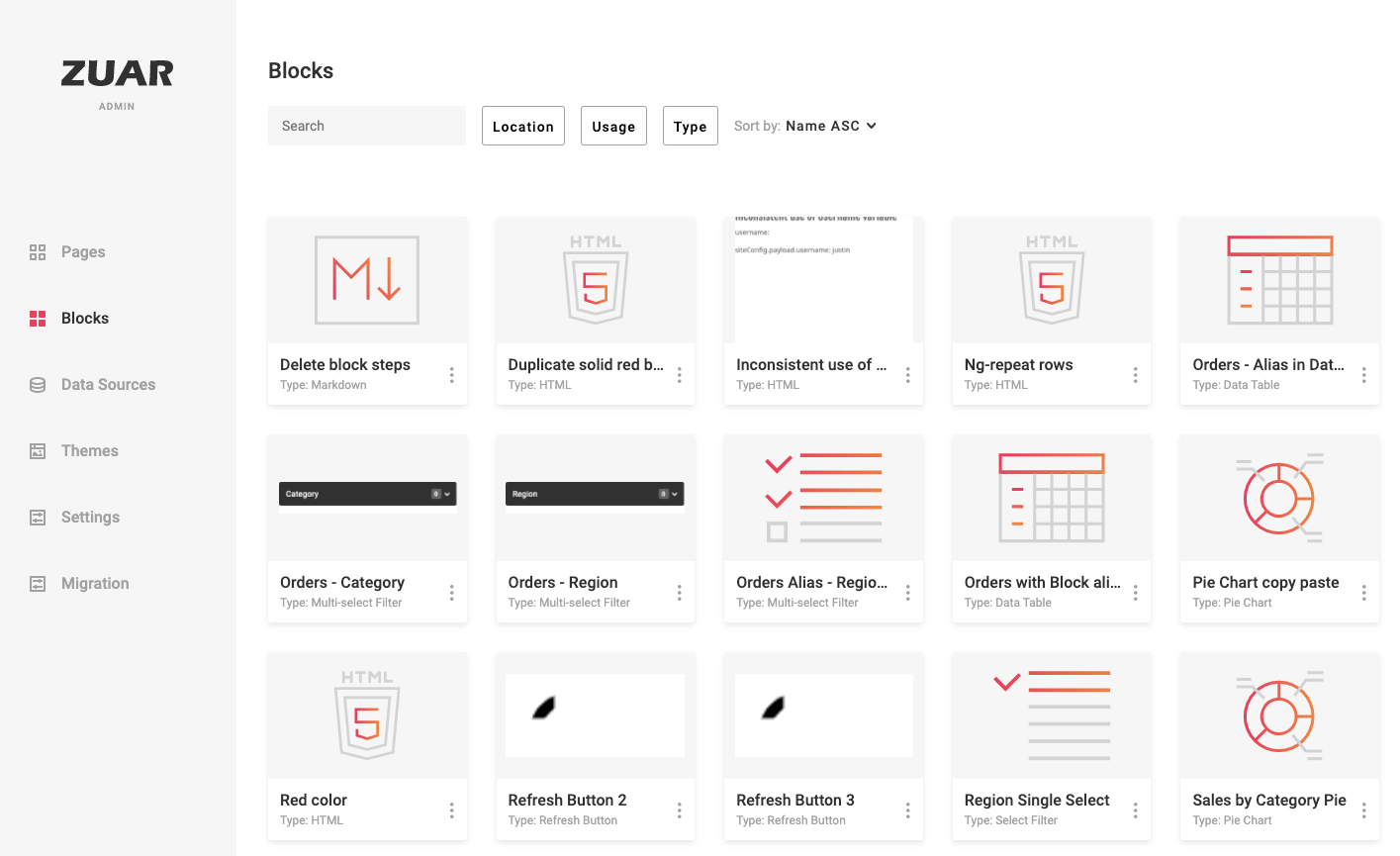
Blocks can be added using the New Block button in the upper-right of the Blocks section of the Admin interface. This section also allows editing of existing Blocks:
Blocks can also be added by Ctrl + clicking on a Page and choosing New Block:
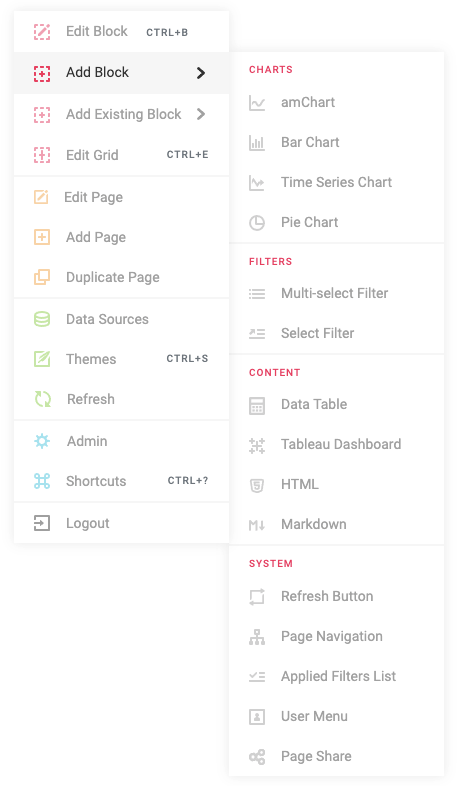
The first step in creating a new block is choosing the block type. The types are broken up into sections:
Charts
- Bar Chart - Horizontal or vertical bar chart
- Pie Chart - Pie or donut chart
- Time Series Chart - Time-based line chart
- Line Chart - XY scatter or line chart
- Gauge Chart - Circular gauge for KPIs
- amChart - Fully customizable amCharts visualization
Content
- HTML - Custom HTML content
- Markdown - Markdown-formatted content
- Data Table - Sortable, filterable data table
- Chatbot - AI-powered data exploration assistant
BI Integrations
- Tableau Dashboard - Embedded Tableau visualization
- Power BI - Embedded Power BI report
- ThoughtSpot Liveboard - Embedded ThoughtSpot dashboard
- ThoughtSpot Search Page - ThoughtSpot saved answer
- ThoughtSpot Spotter - ThoughtSpot AI search
- ThoughtSpot Org Picker - Organization selector for multi-org deployments
Filters
- Select Filter - Single-select dropdown filter
- Multi-Select Filter - Multi-select dropdown filter
- Input Filter - Text input filter
- DateTime Filter - Date and time range picker
- Cascading Filter - Group of related cascading filters
- Parameter Control - Query parameter input control
- Clear Filters - Button to clear all active filters
- Applied Filters List - Display of currently active filters
System
- User Menu - User account menu
- Refresh Button - Refresh data sources
- Translation Picker - Language selector
- File Browser - Browse and download files from the Asset Manager