Prerequisites
- Must provision users in both Tableau and AAD
- Tableau usernames must be an email address
Setup Steps
- Register a new Enterprise application in Microsoft Entra ID
- Add custom SAML claims in Entra ID
- Send values to Zuar
- Create Tableau Connected App (Optional. For Tableau integrations only)
Register Entra ID Application
- Log in to your Microsoft Azure Portal
- Navigate to Microsoft Entra ID
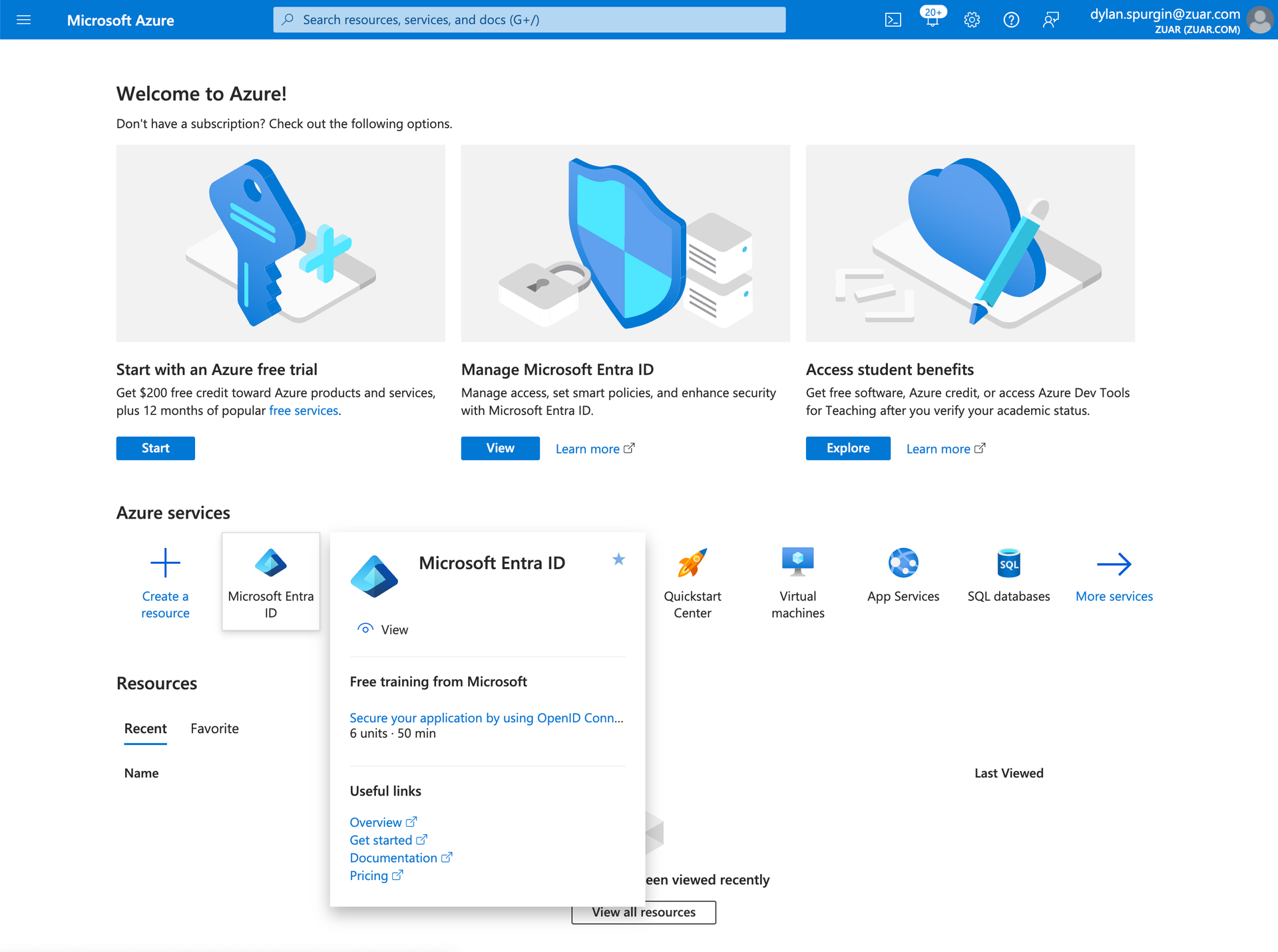
- Register the Enterprise application:
- Click Add > Enterprise application
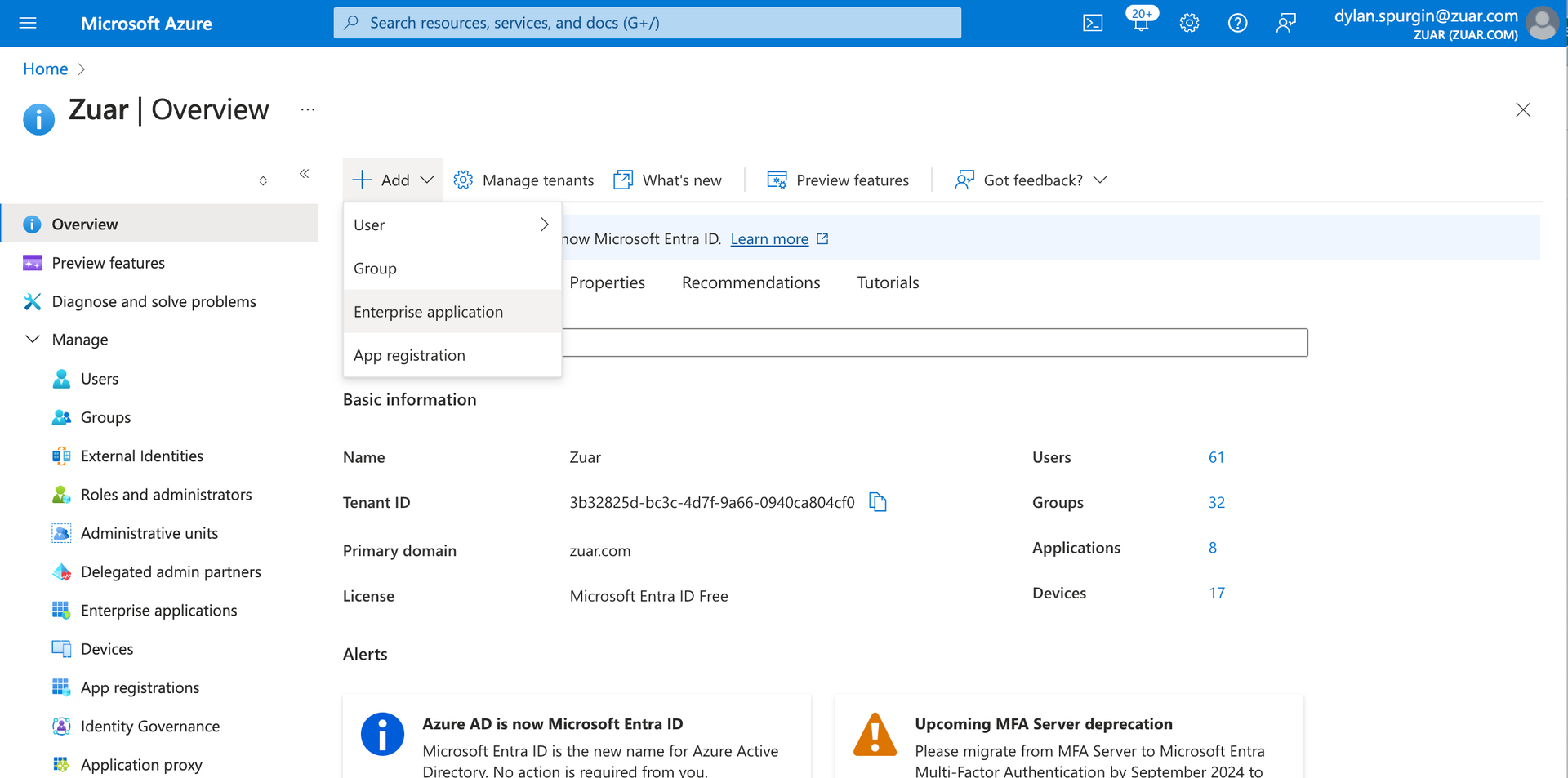
- Search for and click on “Microsoft Entra SAML Toolkit”
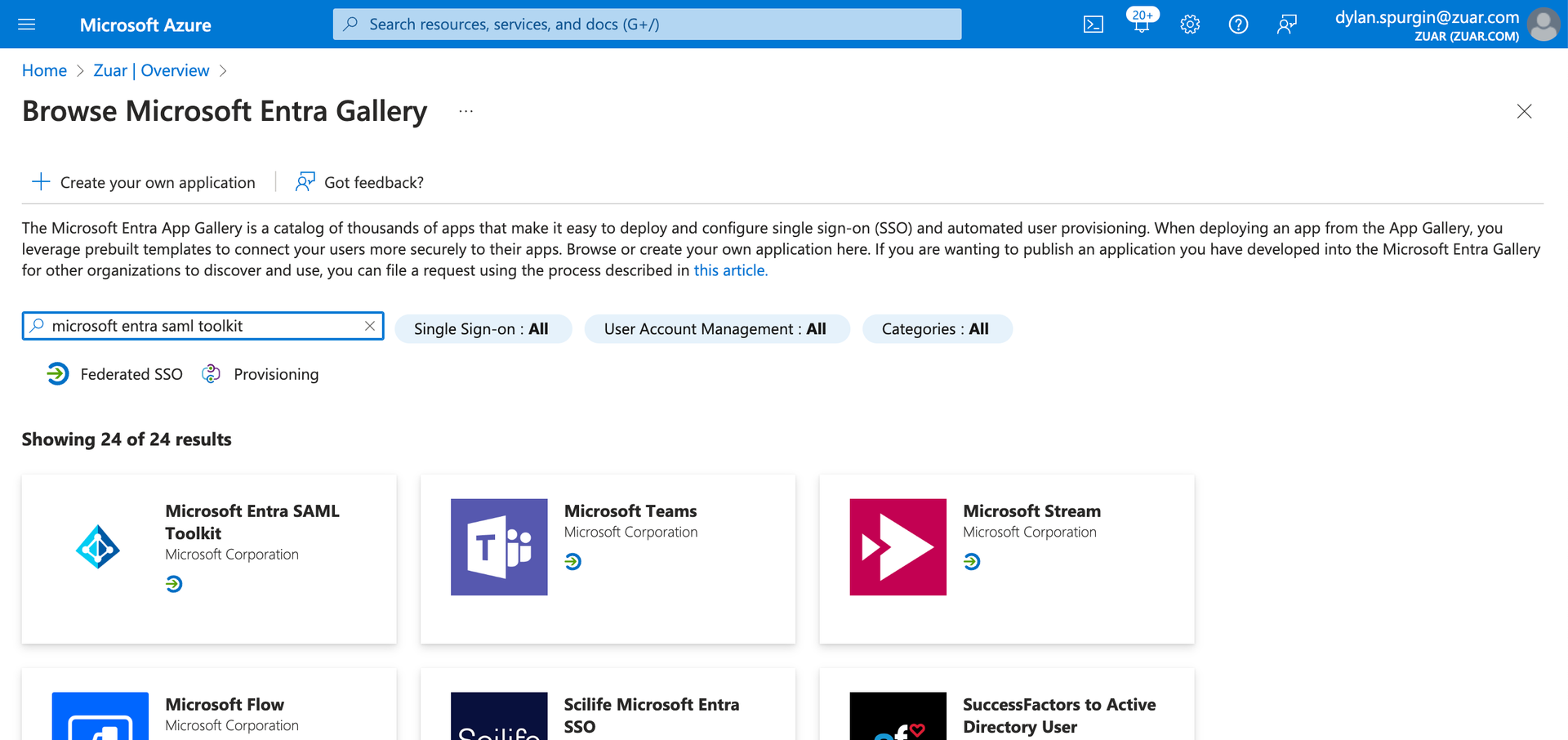
- Enter “Zuar Portal” for the name and click Create.
- Click “Set up single sign on” card
- Click on the “SAML” card
- Under “Basic SAML configuration” click “Edit”
- Enter the following values:
- Identifier (Entity ID): Enter the Zuar Portal URL, e.g.
https://example.zuarbase.net - Reply URL (Assertion Consumer Service URL): Enter:
https://<your-portal-url>/login(Be sure to replace<your-portal-url>with your actual Portal URL) - Sign on URL: Same as Reply URL (Assertion Consumer Service URL) field above
- Relay State: Leave empty
- Logout Url:
https://<your-portal-url>/logout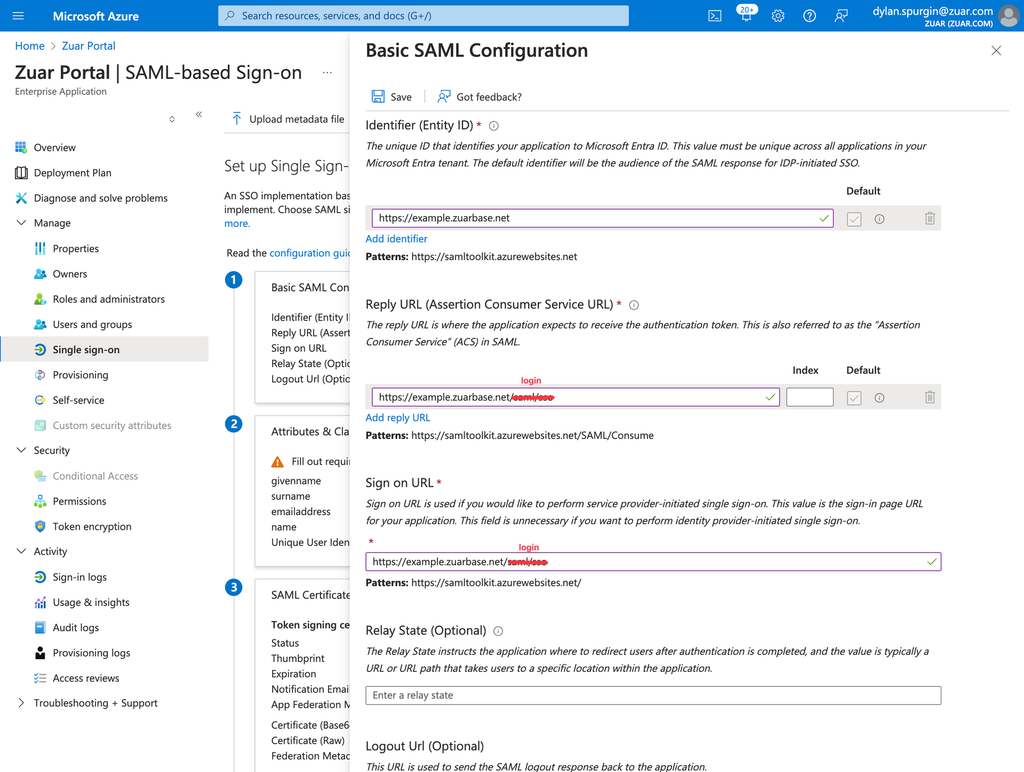
- Click Save.
- Identifier (Entity ID): Enter the Zuar Portal URL, e.g.
- Click Add > Enterprise application
Register Entra ID Application
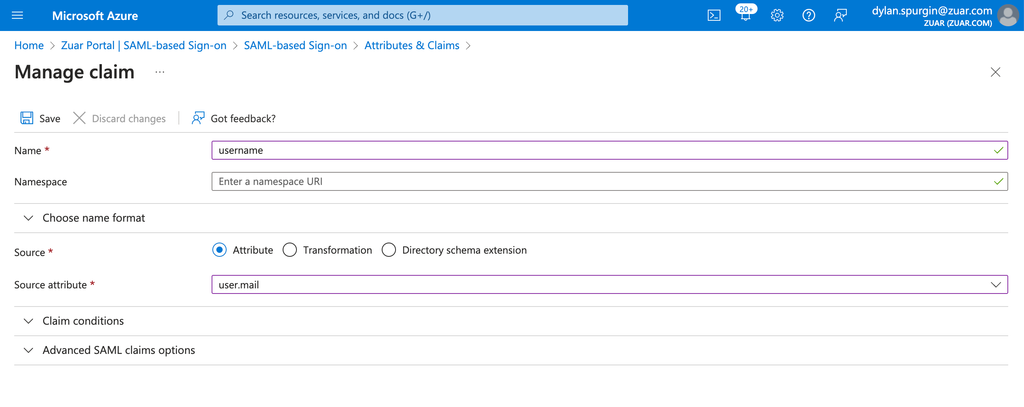
- On the Attributes & Claims card, click Edit.
- Click Add new claim.
- For name, enter:
username - For Source attribute, enter:
user.mailNote: some Azure environments use a different attribute for the email address, eg.user.userprincipalname. Any attribute which sends the user’s email address works. - Click Save
Assertions (claims) should also by added for admin and, optionally, groups.
Admin
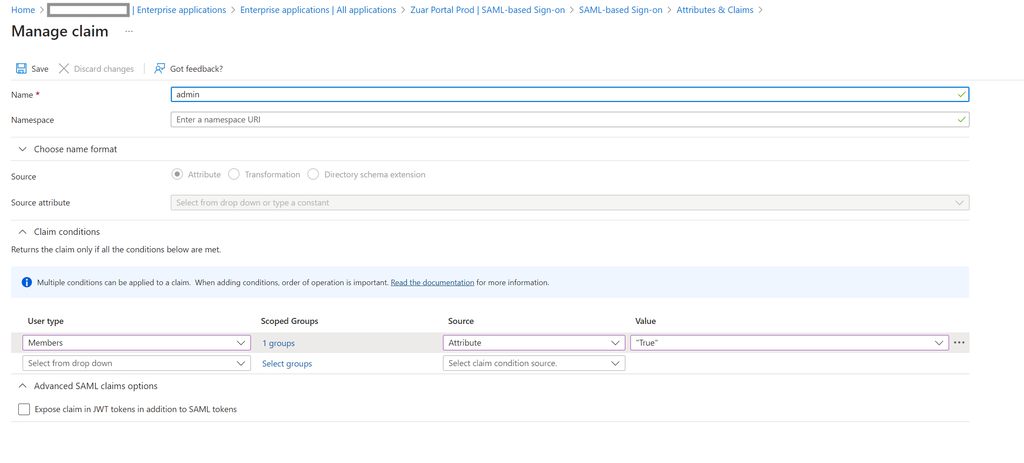
It's recommended to setup a new Active Directory/Azure group to control access to Portal’s admin functionality (creation of pages, blocks, configuration, etc.). If the user logging in is a member of this group the admin assertion should be set to true; otherwise this should be false. A conditional claim called admin should be setup in Attributes & Claims to evaluate membership in the group and populate the claim appropriately:
Groups
(Optional) If Portal is going to leverage Active Directory/Azure groups, they should be passed in an assertion called groups.
Send Metadata to Zuar
Once the application has been created and configured as specified above, send the app’s metadata to your contact at Zuar:
- Under SAML Certificates click the Download link next to “Federation Metadata XML”
- Download/save this XML file and send it to your Zuar contact