Forgot password
The Zuar Portal forgot password feature requires the configuration of an SMTP server for sending the forgot password email. Follow these steps to enable forgot password and ensure that SMTP is configured properly:
- Configure SMTP credentials
- Configure an SMTP config
- Configure a mail sender
- Configure a message template
- Configure the Forgot Password feature
- Enable the Forgot Password link on the login page
SMTP Credentials
Credentials for SMTP are stored in the Portal database and can be added via the Credentials CLI.
In example below we can see set of 2 credentials saved with IDs test_basic_creds, test_custom_creds.
Credentials CLI
It is recommended to use CLI commands to manage SMTP credentials. To access the credentials CLI, you must first
SSH into the Portal. Once logged into the Portal, step into the auth container with the following command:
cd ~/portal-docker-setup/setup
docker-compose exec auth bash
Adding Basic Credentials
Run the following CLI command to add basic credentials:
python -m auth credentials add basic --username=test_user2 --password=test_password --credentials-name=test_basic_creds
| Property | Description |
|---|---|
| username | Credentials Username |
| password | Credentials Password |
| credentials-name | Credentials Name to be saved |
Adding Custom Credentials
Run the following commands to add custom credentials:
python -m auth credentials add custom --data="{'prop':'value'}"  --credentials-name=test_custom_creds
cat credentials.json | python -m auth credentials add custom --data="{'prop':'value'}"  --credentials-name=test_custom_creds
| Property | Description |
|---|---|
| credentials-name | Credentials Name to be saved |
Adding M360-Oauth2 Credentials
Run the following CLI command:
python -m auth credentials add m365-oauth2 --tenant-id=<YOUR_TENANT_ID> --client-id=<YOUR_CLIENT_ID> --username=<YOUR_USERNAME> --client-secret=<YOUR_CLIENT_SECRET>
Obtaining Gmail Basic credentials
Follow these steps to obtain Gmail App password: Obtain Gmail App Password
Obtaining Outlook Basic credentials
Following this steps you will be able to obtain Outlook App password. Obtain Outlook App Password
Obtaining Outlook oAuth2 credentials
- Login to Azure.
- Search for
App registrationsand then choose it from the listed Services. - Choose
New registrationto create a new application. - Enter the application
Name, select the appropriate option underSupported account types, underRedirect URIselectSingle-page Application (SPA)and enter your Zuar Portal domain (e.g.https://customer.zuarbase.net). Finally, clickRegister.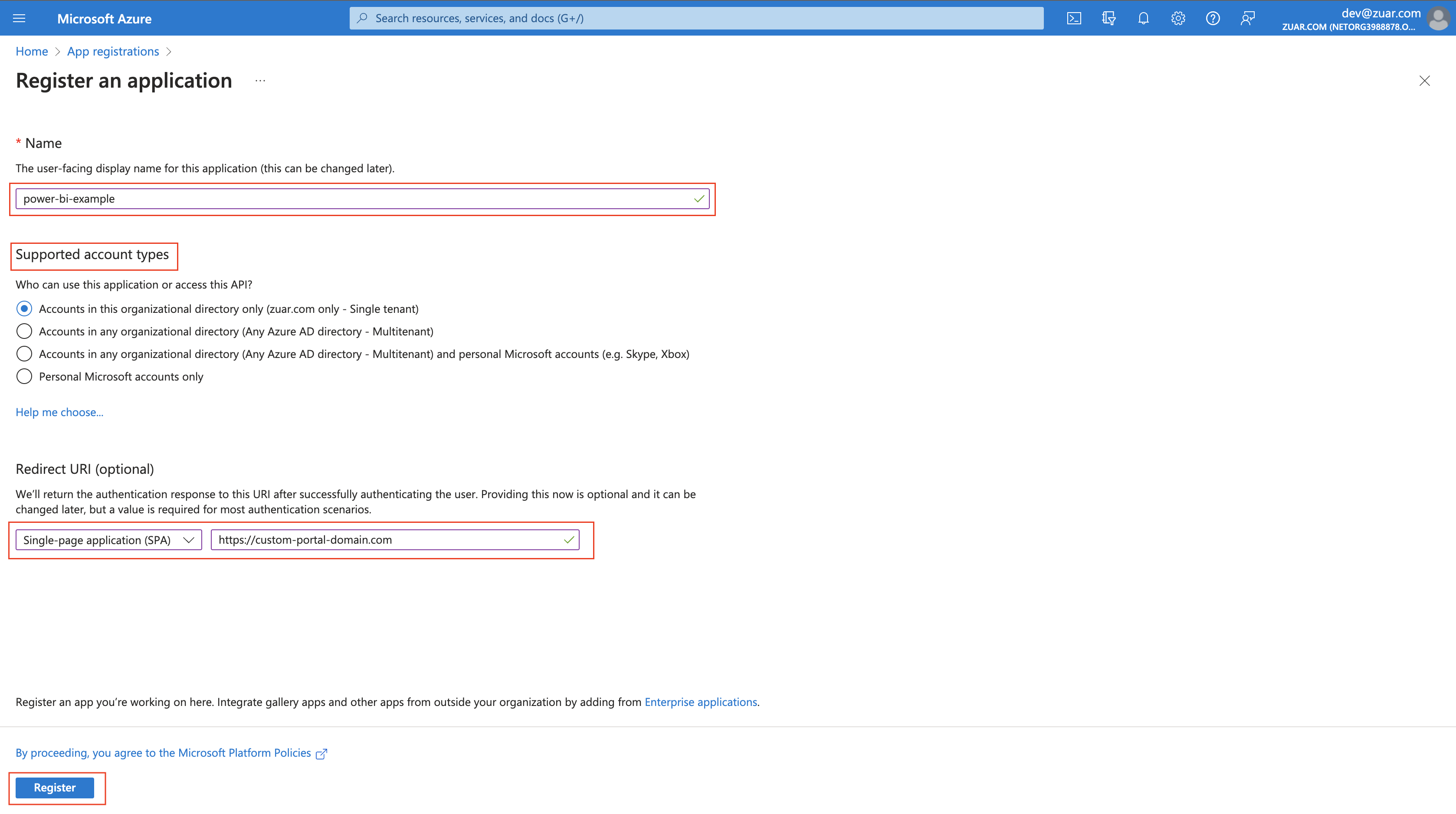
- Choose
API permissionsin left sidebar. Then click+ Add a permission.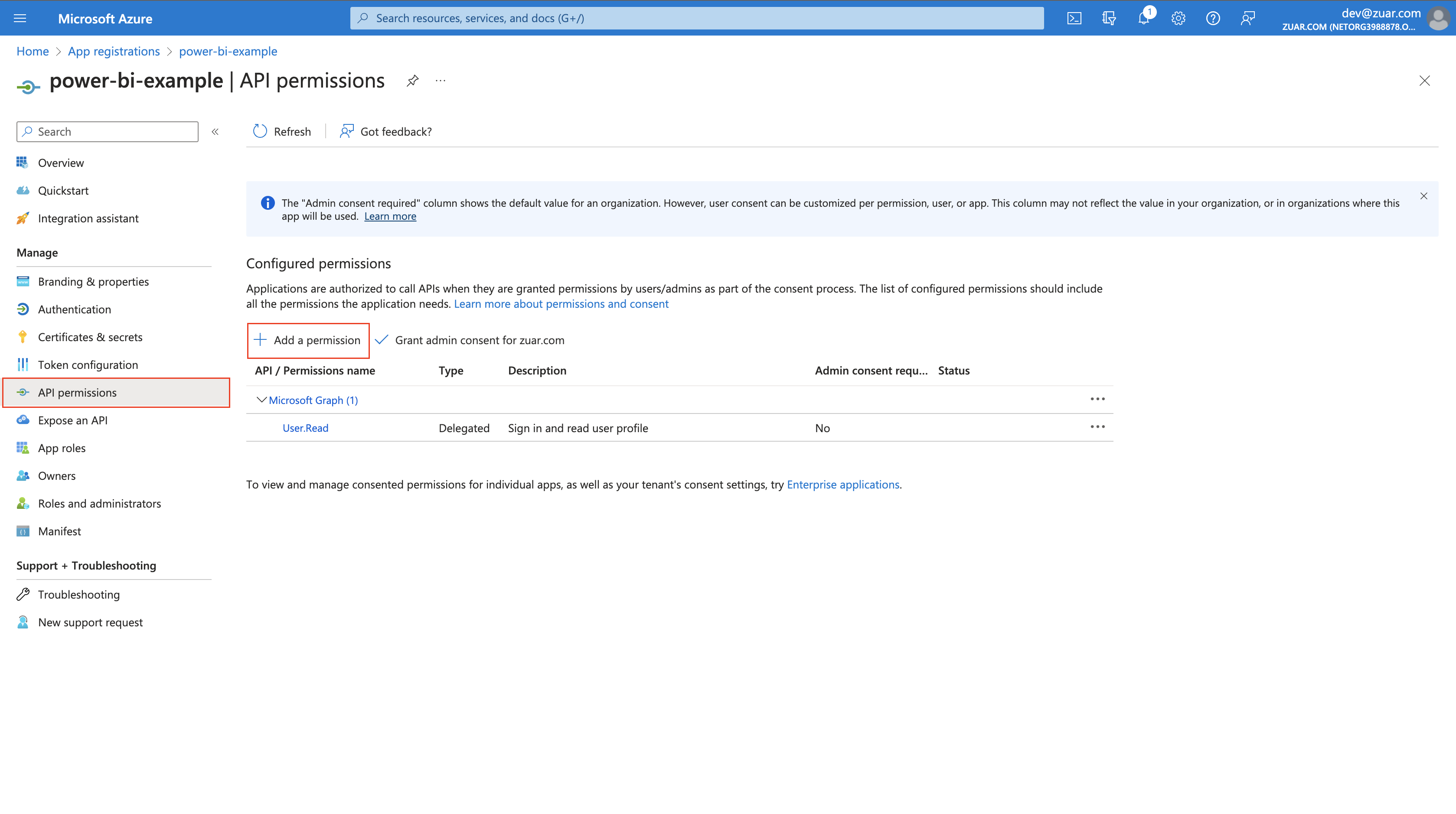
- Select
Mail Service. - Click
Delegated permissions, and select Mail related permissions. - Click
Application permissions, and select Mail related permissions. - Click
Add permissions. - Click
Grant admin consent for .... There should be green checkmarks in the Status column for each row. - Click
Certificates & secretsin the left sidebar. Click+ New Client secret.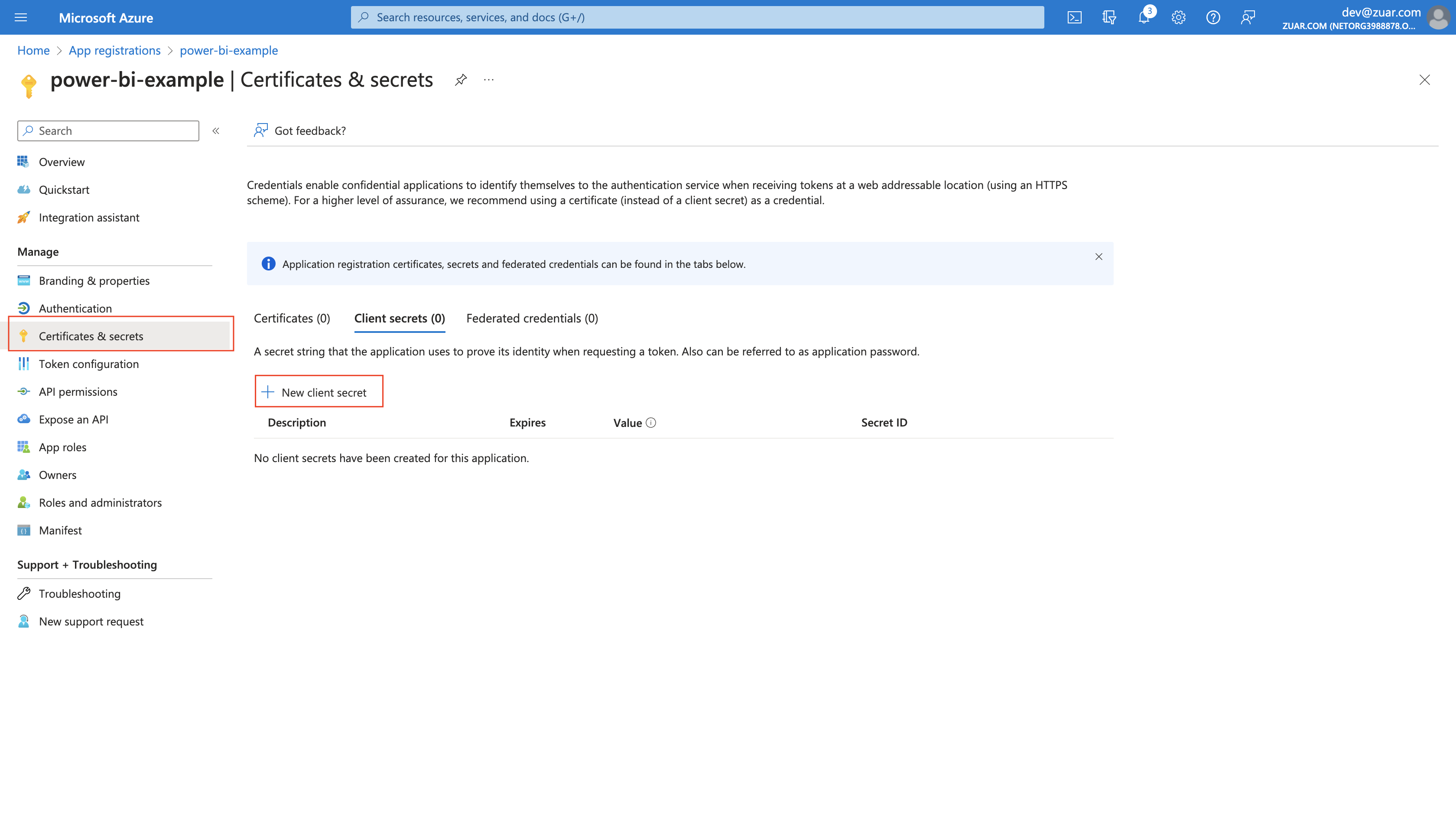
- Enter a
Descriptionand select an appropriateExpiresdate, then clickAdd.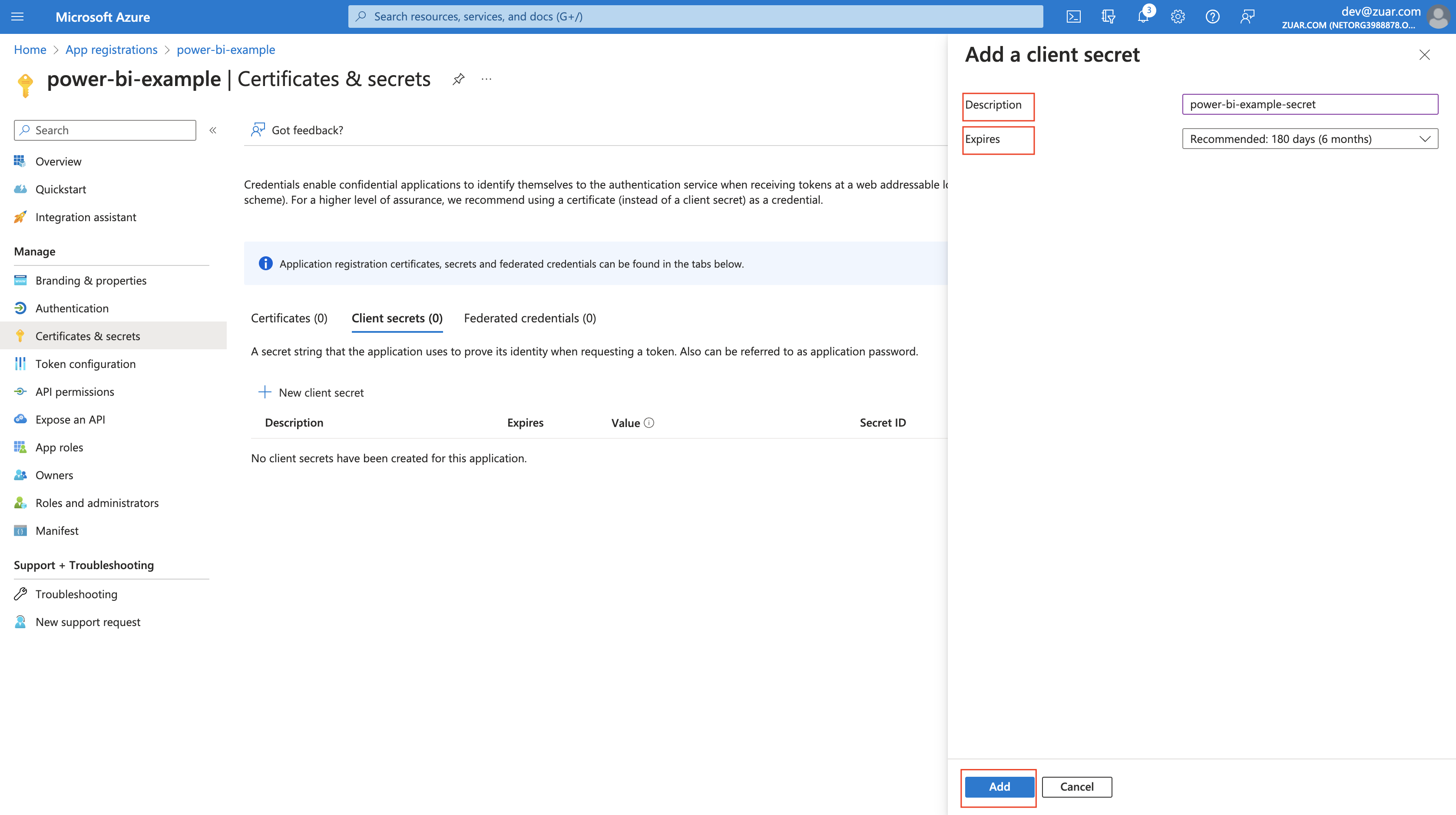
- Click the copy icon next to the
Valueand save the string as this will be our--client-secretenviroment variable.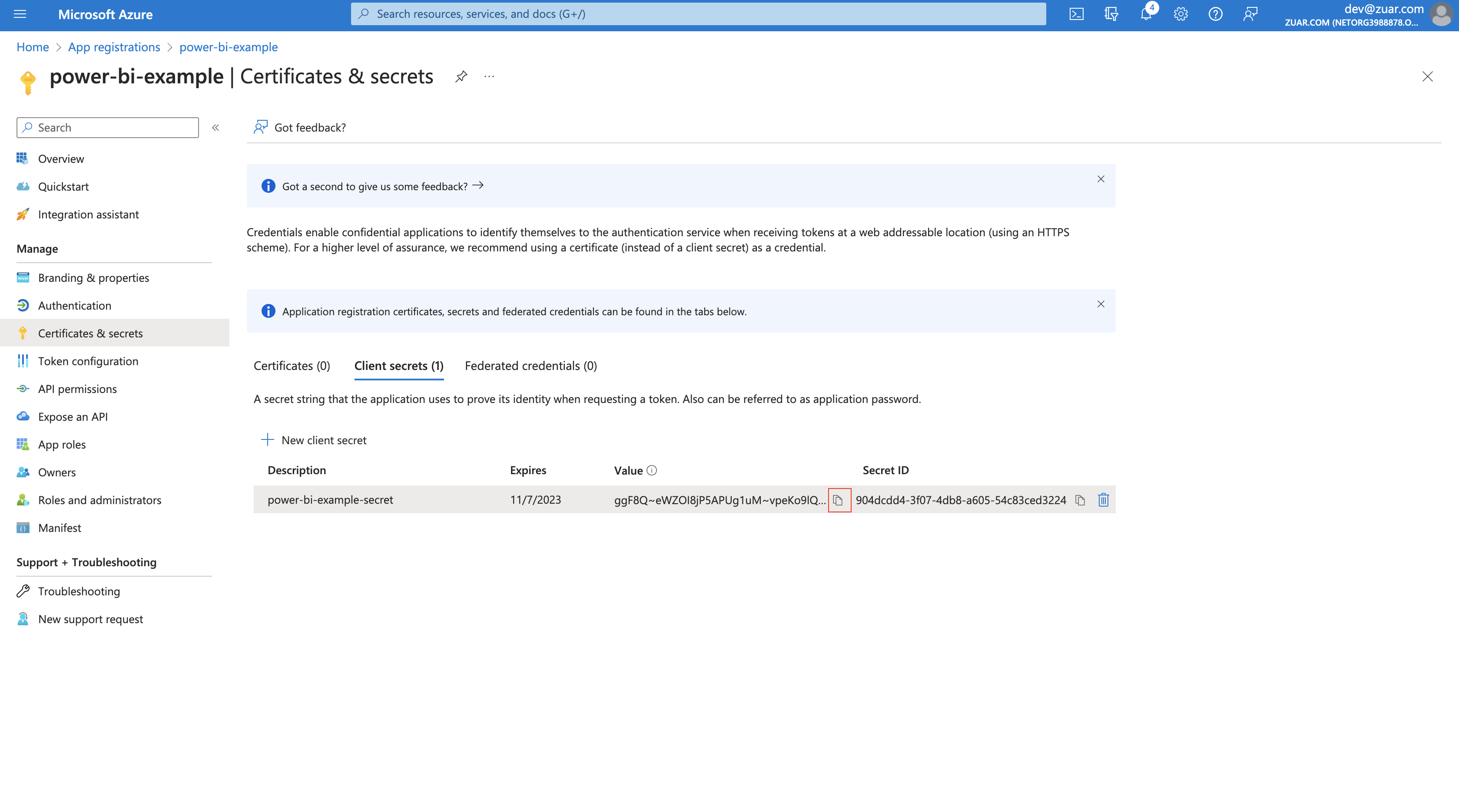
- Click
Overviewin the left sidebar, then collect the remaining enviroment variables.Application (client) ID=--client-id,Directory (tenant) ID=--tenant-id.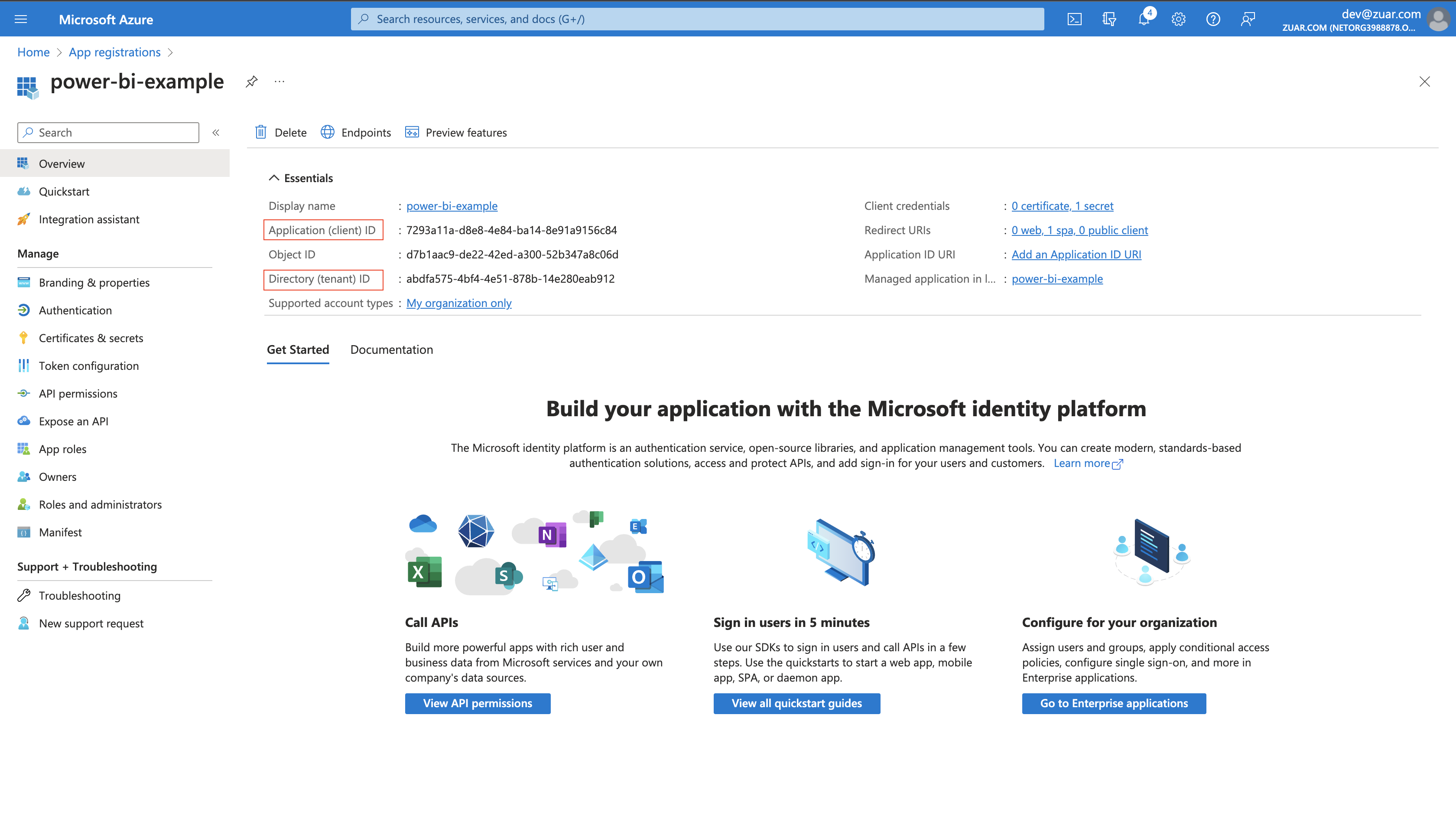
SMTP Config
To check default configs check app/auth/conf/default folder. To add or edit configs edit file located at app/auth/conf/local. In example below, we can see two defined configs in communication.email.smtp.configs section.
communication:
  email:
    smtp:
      configs:
        gmail:
          host: smtp.gmail.com
          port: 587
          timeout: 20
        outlook:
          host: smtp-mail.outlook.com
          port: 587
          timeout: 20
...
| Property | Type | Description |
|---|---|---|
| host | string |
SMTP host address |
| port | number |
SMTP port |
| timeout | number |
Timeout of SMTP request |
Mail Sender
Edit the config file located at ~/app/conf/auth/local/00_local_config.yml (Portal version 1.12.0 and before) or ~/portal-docker-setup/for_mounting/app/conf/auth/local/00_local_config.yml (1.13.0 and later). If you dont have one, create it manually. Add or edit the following section.
app:
  senders:
    mail_sender:
      config_id: outlook
      credentials_id: m365_dev_zuar_smtp_credentials
      mail_from: CPortal Test <dev@zuar.com>
      type: smtp
    ...
...
| Property | Type | Description |
|---|---|---|
| config_id | string |
ID of an SMTP configuration from the previous step |
| credentials_id | string |
ID of credentials to be used with SMTP. This is the value you entered in the Credentials CLI command for --credentials-name |
| mail_from | string |
Email address to be displayed as sender |
| type | Enum[string] |
Type of sender. Available options is smtp, logging |
Message Template
Edit the config file located at ~/app/conf/auth/local/00_local_config.yml (Portal version 1.12.0 and before) or ~/portal-docker-setup/for_mounting/app/conf/auth/local/00_local_config.yml (1.13.0 and later). This section contains an HTML template to be used when sending the forgot password message. It is possible to define multiple templates in message_templates section. In the example below, reset_password_email_html_template is a template's ID. Use ${reset_password_link} to interpolate the reset password link into the email template.
message_templates:
  reset_password_email_html_template:
    type: html
    title: "Reset password"
    body: '<p>Hello,<br>Click the link to reset your password: <a href="${reset_password_link}">Reset</p>'
...
| Property | Type | Description |
|---|---|---|
| type | string |
Type of template |
| title | string |
Title of email |
| body | string |
Template of message. Use ${reset_password_link} to insert restore password link. |
Forgot Password Feature
To enable and configure the forgot password feature, edit the config file located at ~/app/conf/auth/local/00_local_config.yml
(Portal version 1.12.0 and before) or ~/portal-docker-setup/for_mounting/app/conf/auth/local/00_local_config.yml (1.13.0 and later).
If you dont have one, create it manually. This section contains general settings for the reset password functionality.
app:
  features:
    reset_password:
      enabled: true
      sender: mail_sender
      message_template_id: reset_password_email_html_template
      available_user_sources: [null, "LOCAL", "TABLEAU"]
| Property | Type | Description |
|---|---|---|
| enabled | boolean |
Disable or enable forgot password functionality |
| message_template_id | string |
ID of template to be used in message. See more |
| sender | string |
ID of sender configuration. See more |
| available_user_sources | List[string] |
List of user's sources that can use forget password functionality |
Forgot Password Link
Finally, to enable the forgot password link on your login page, browse to the editor at http://login.html to edit your login page. Locate the <login-form> element and set the hide-forgot-password attribute to false. Click "Save" to save the page.
<login-form heading="Zuar Portal" button-text="Log In" hide-forgot-password="false" server=""></login-form>