ThoughtSpot Setup
The Zuar Portal ThoughtSpot integration requires a couple of setup steps in ThoughtSpot as well as in the Portal.
Overview
- Enable "Trusted authentication" in ThoughtSpot security settings. Learn more.
- Add Portal domain in the Security settings of your ThoughtSpot instance. Learn more.
- Add Trusted authentication token and ThoughtSpot domain to Portal's Integrations. Learn more.
Enable Trusted authentication
Portal uses Trusted authentication to get access to ThoughtSpot Embed and REST API features. To use "Trusted authentication" it must be enabled in the Security settings of your ThoughtSpot instance. In order to do that follow next steps:
- Log in to your ThoughtSpot instance with a user that has an Admin role.
- Navigate to Develop > Customizations > Security Settings.
- Click "Edit" button.
- Enable "Trusted authentication" toggle.
- Click "Save" settings.
- Click "Edit" button again.
- Under "Trusted authentication" toggle you should now be able to see a field with the generated token.
- Save you this token and send it to your Zuar Representative along with your ThoughtSpot instance URL (eg; my-company.thoughtspot.cloud).
For more information check the official documentation on "Trusted authentication".
Add Portal domain to CSP and CORS settings in ThoughtSpot
Follow these steps to allow your Portal to connect to your ThoughtSpot instance:
- Log in to your ThoughtSpot instance with a user that has an Admin role.
- Navigate to Develop > Customizations > Security Settings.
- Click "Edit" button.
- In "CSP visual embed hosts" field, add your Portal's domain, including
https://. - In "CORS whitelisted domains" add your Portal's domain, without
https://.- For example if Portal's URL is
https://portal.zuarbase.net/, you should addportal.zuarbase.netin ThoughtSpot settings.
- For example if Portal's URL is
- Click "Save" settings.
For more information check the official documentation on "CORS whitelisted domains".
Portal Thoughtspot Integration
To connect you Thoughtspot instance to the Portal you can use Admin's Integrations section.
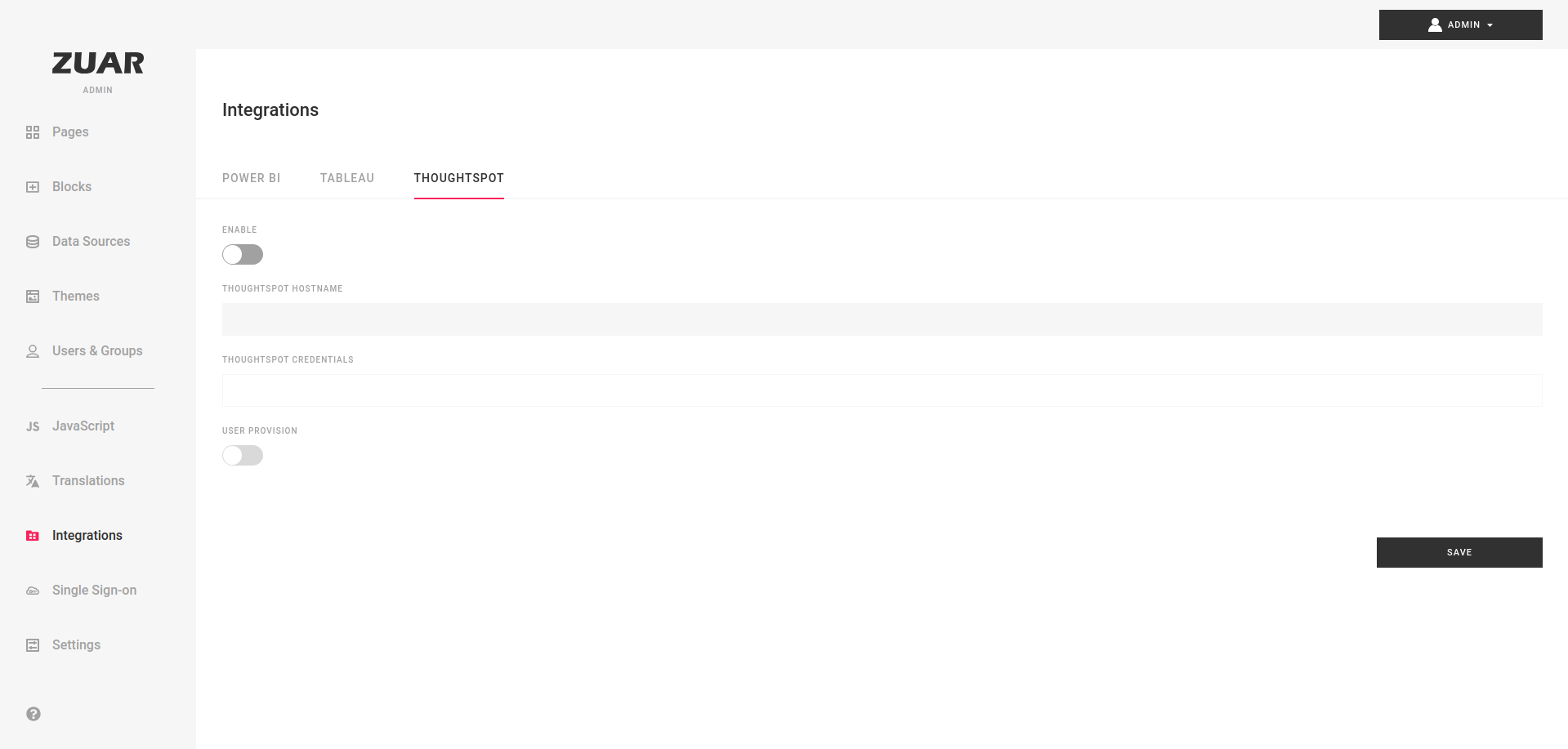
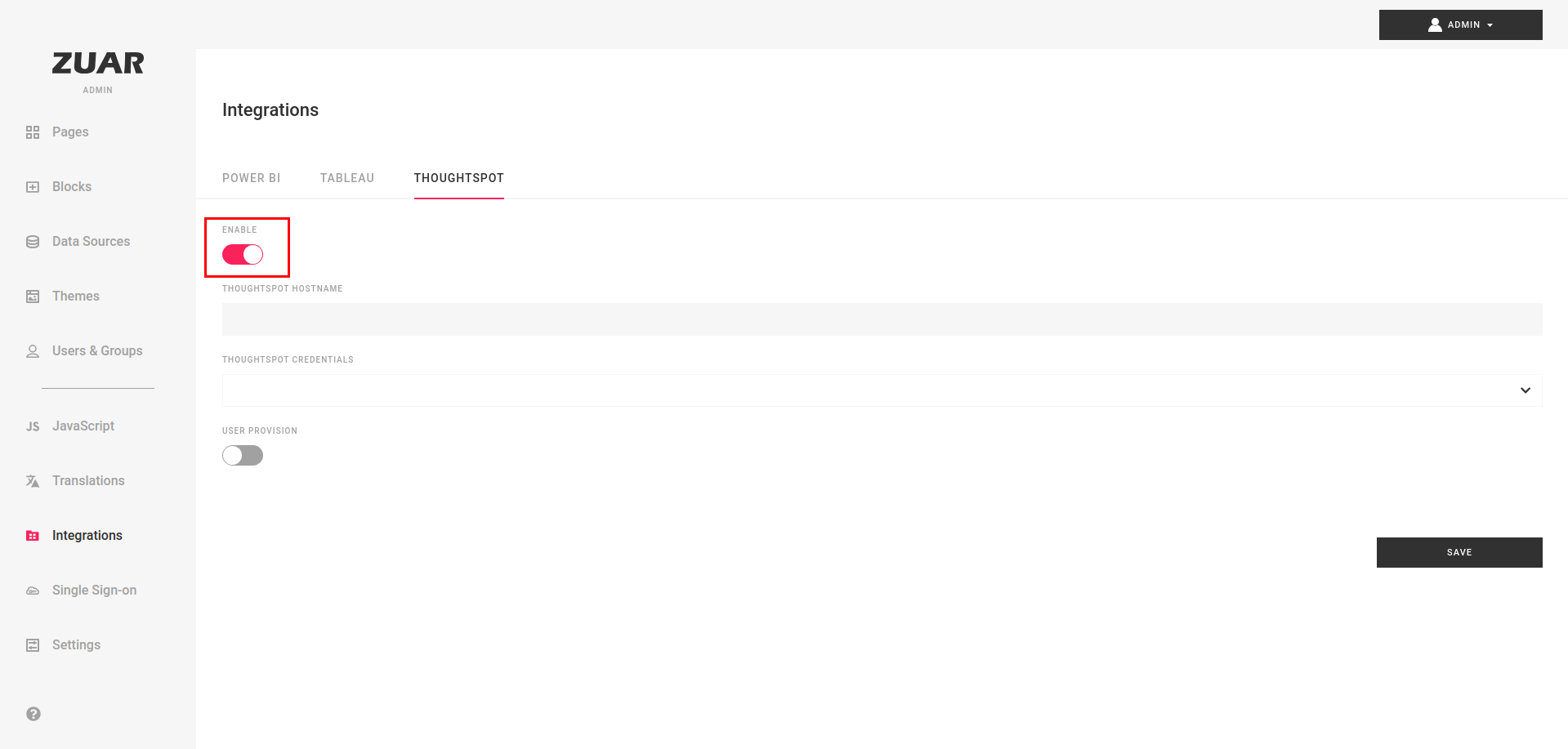
- Enable Thoguthspot integration
- Enter your Thoughtspot instance domain in
ThoughtSpot Hostnamefield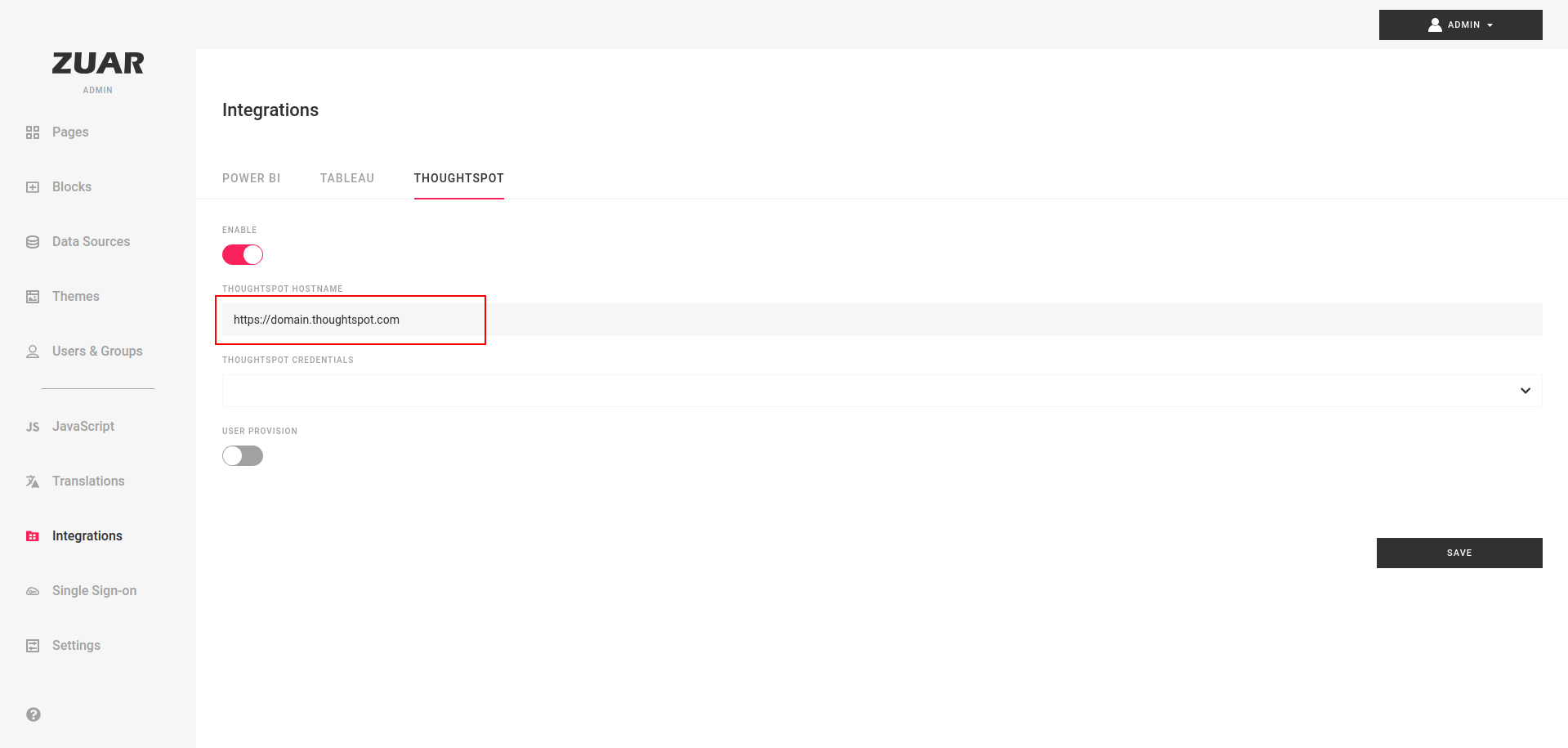
- Click on
ThoughtSpot credentialsfield to open dropdown and click+ Create New Credentials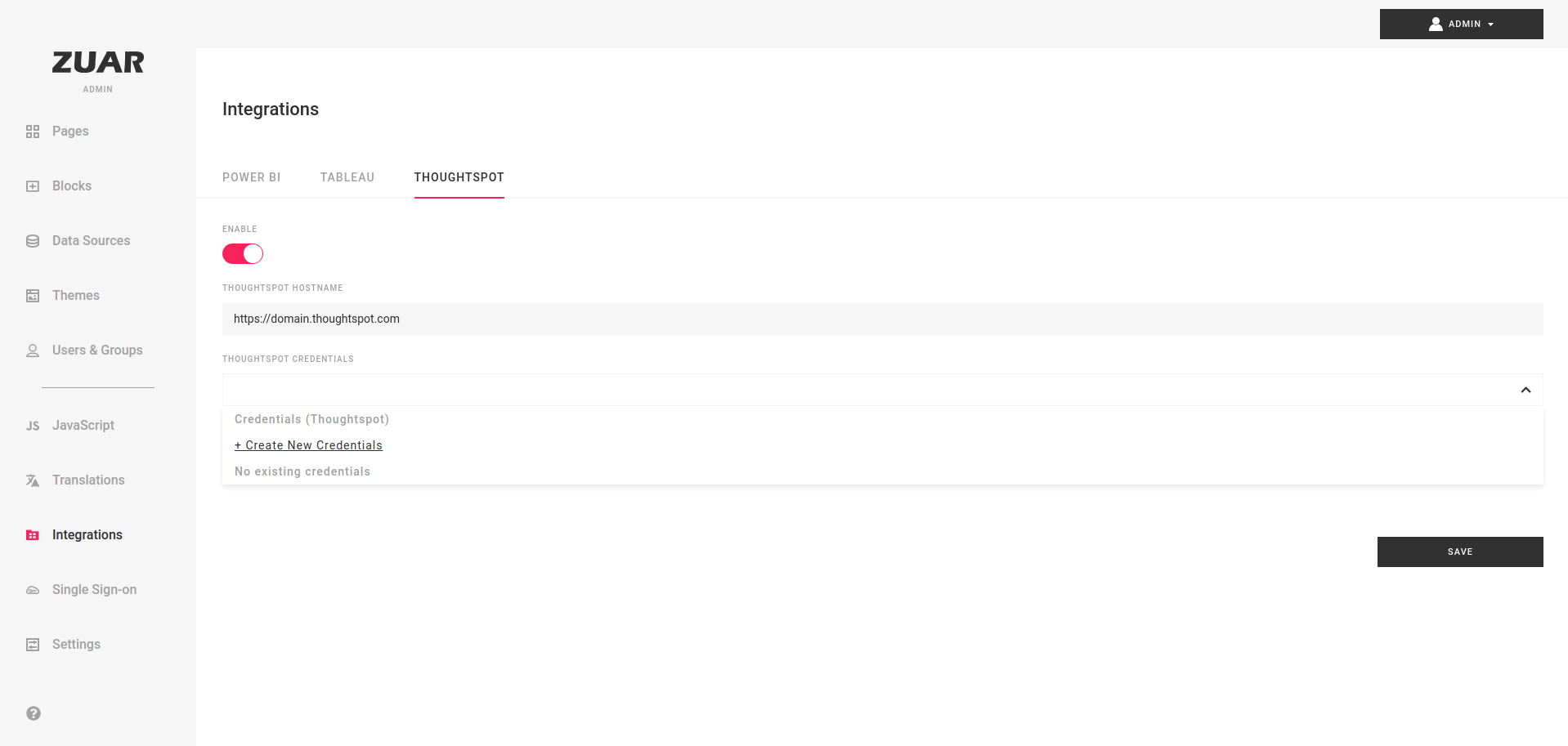
- In modal enter your Trusted authentication token in
Secret keyfield and clickSave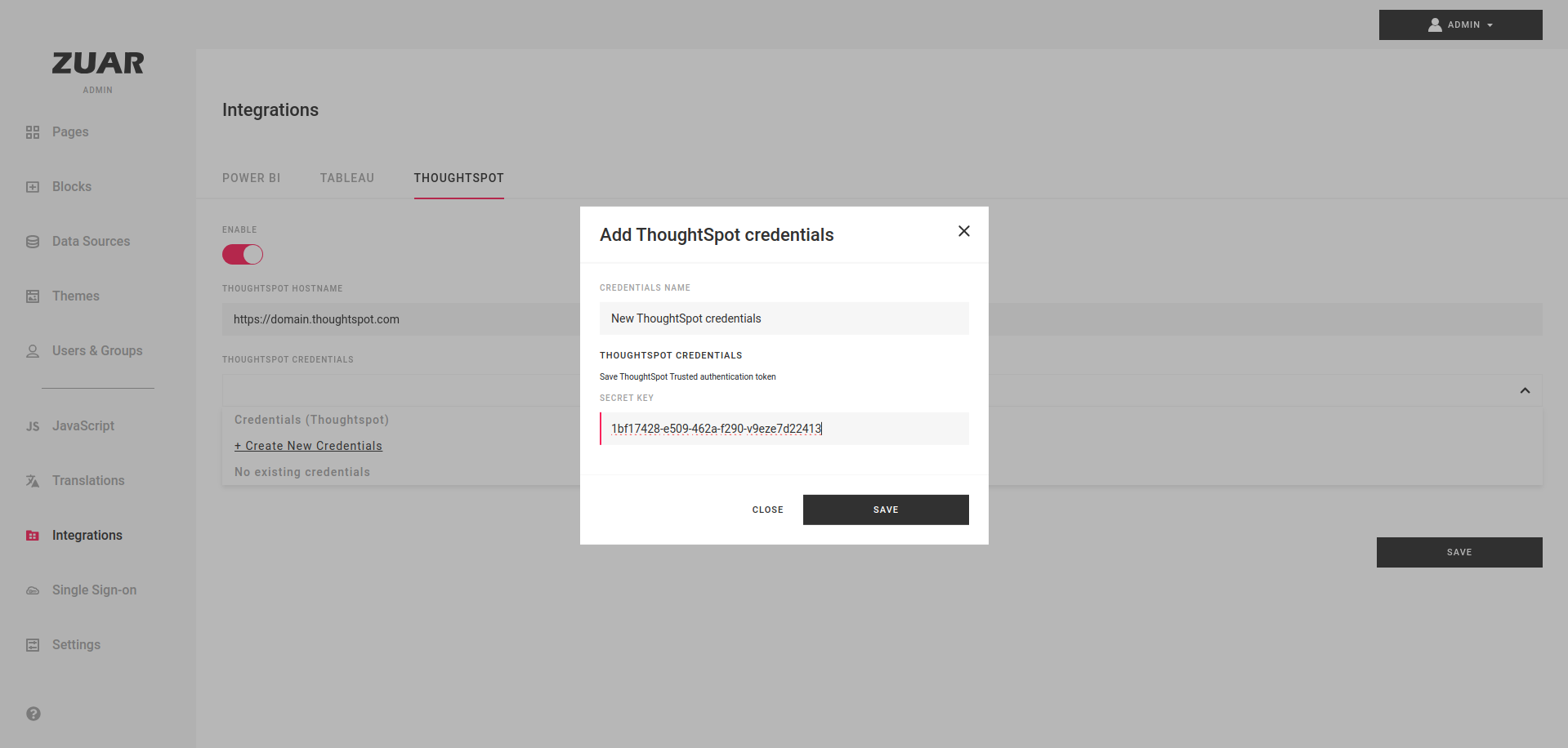
- Click
Save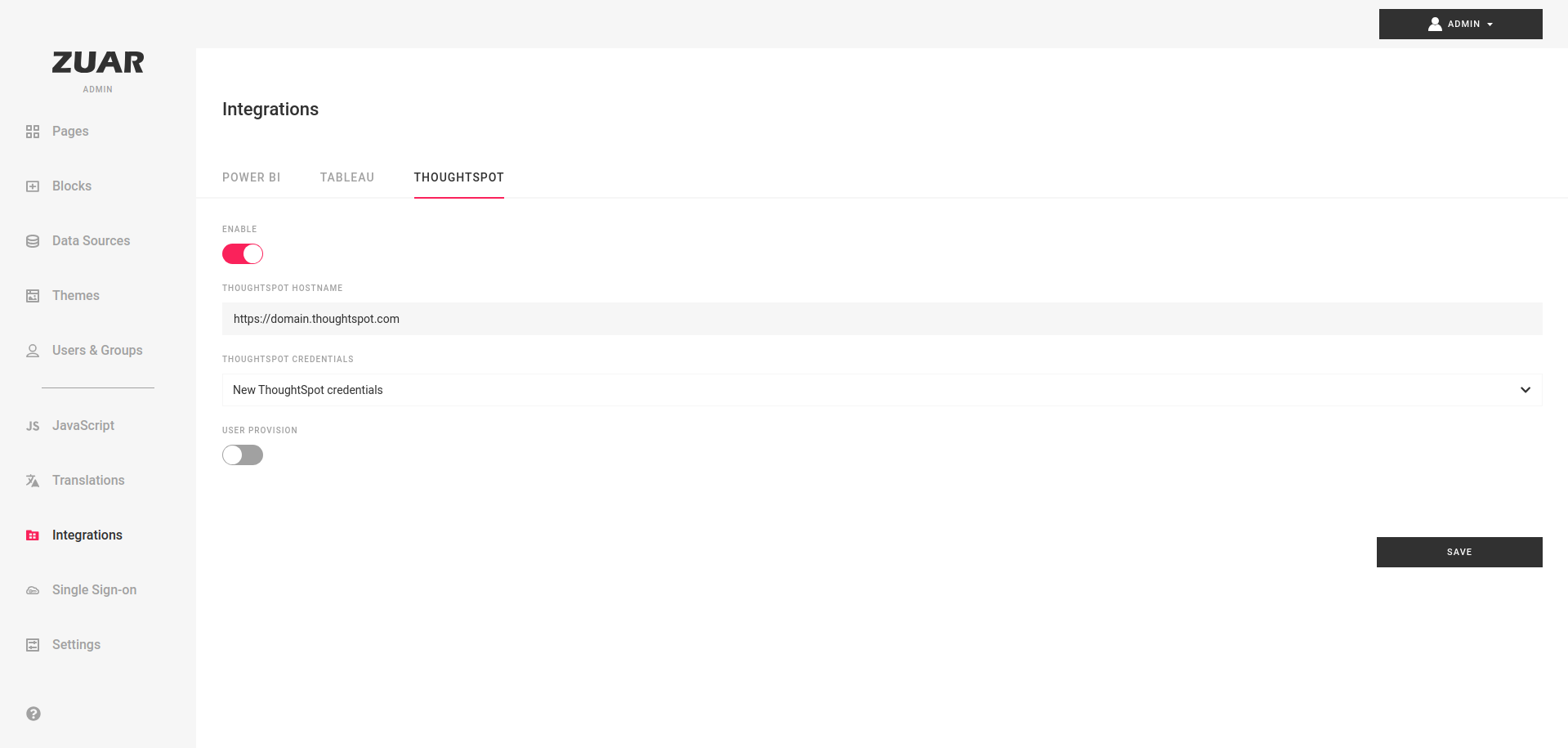
- This is it! Your Thoughtspot integration is complete.
ThoughtSpot User Provision
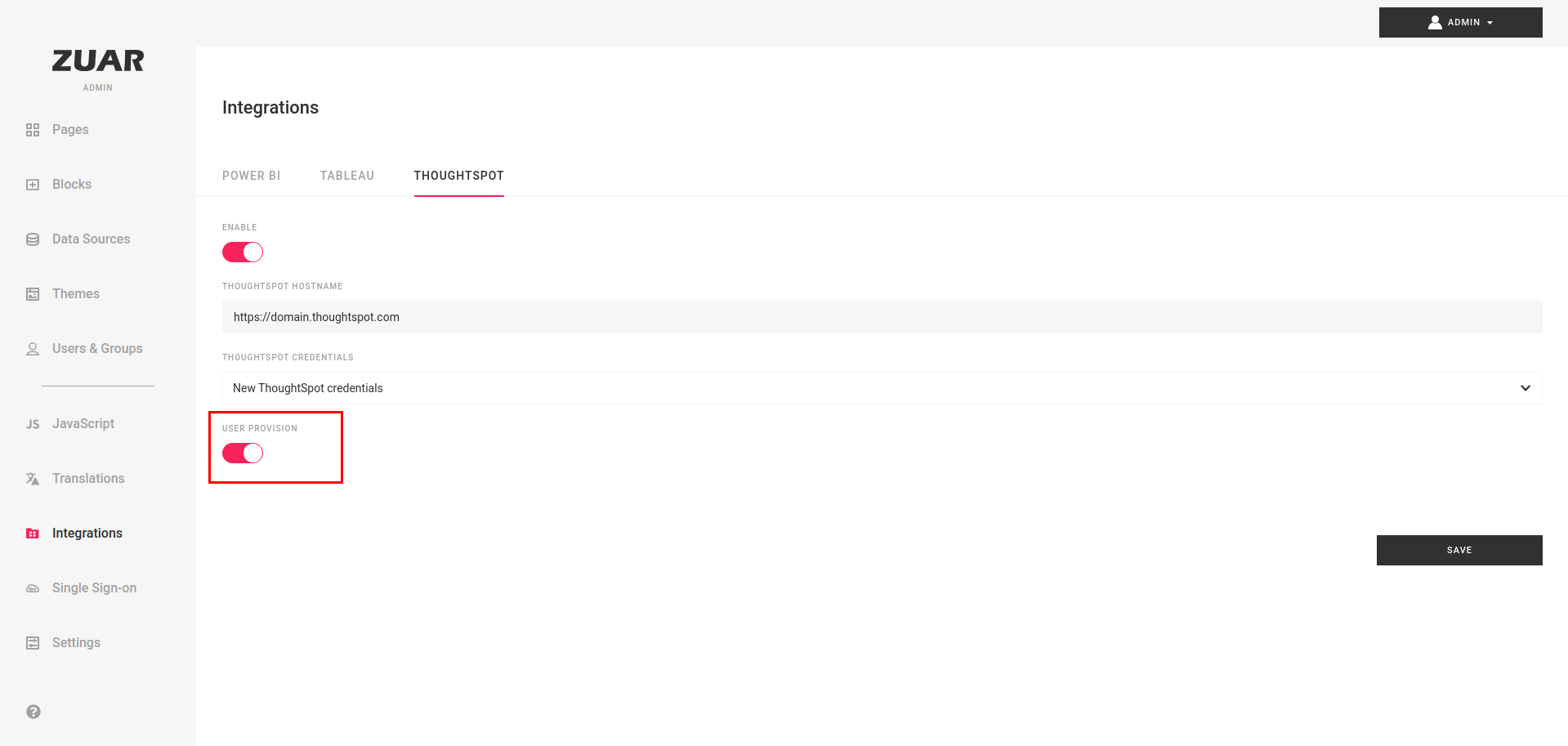
ThoughtSpot User Provision allows to automatically create a user on login if it doesn't exist.
To enable check corresponding toggle.
Multi-Org Support
Portal supports ThoughtSpot multi-org deployments where users have access to multiple ThoughtSpot organizations. When multi-org is enabled, users can switch between organizations and all ThoughtSpot blocks on the page update to display data from the selected org.
ThoughtSpot Block Types
The following block types are available for ThoughtSpot integrations:
- ThoughtSpot Liveboard - Embed a ThoughtSpot liveboard (dashboard). Supports selecting a specific organization and visualization.
- ThoughtSpot Search Page - Embed a ThoughtSpot saved answer with optional search interface.
- ThoughtSpot Spotter - Provide an AI-powered search and exploration interface for a ThoughtSpot worksheet.
- ThoughtSpot Org Picker - Add an organization selection dropdown for multi-org deployments.
Using Multi-Org
- Add a ThoughtSpot Org Picker block to the page so users can switch organizations.
- When configuring ThoughtSpot Liveboard or Spotter blocks, select the Organization in the block editor.
- Enable Hide block if user is not authenticated for the selected Organization to automatically hide blocks the user cannot access.
The System JS API provides programmatic access to multi-org functionality via zPortal.thoughtspot.setOrg() and event handlers.