Add a Data source
Zuar Portal's Data Sources page allows you to create new data sources. It also facilitates editing and removal of existing data sources.
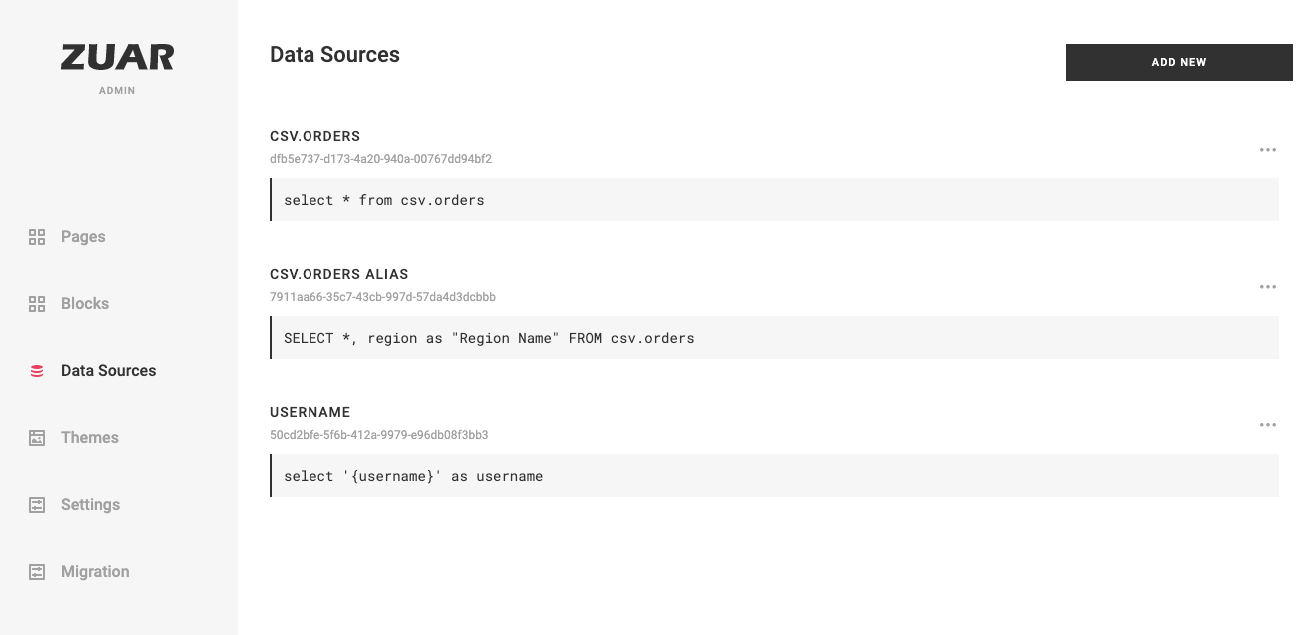
Add a new data source to Portal by clicking the New Data Source button in the upper right corner of the Data Sources page.
- Enter a descriptive name in the Name field.
- Database Connection: leave this blank to access Portal's built-in database, otherwise enter the database connection string.
- Enter the SQL SELECT query to return the desired data from the database in the SQL field.
- Use the Test button to verify database access. If successful, the records returned by the SQL query will be displayed below the button.
- In the Column Types tab, indicate the Data Type of each column returned in the SQL query.
- Click Save.
To connect Databricks as a data source, see Connect Databricks as a Data Source.