Tableau Setup
The Zuar Portal Tableau integration allows connecting Tableau instance to Portal and seamless authentication for Tableau blocks.
Overview
- Create a Connected app within the Tableau Site. Learn more.
- Add Connected app credentials. Learn more.
Create Connected app
A Connected App is one of the authentication methods provided by Tableau. Learn more
- Log in as admin user to a Tableau Site that you would like to connect to the Portal.
- Navigate to Settings > Connected Apps.
- Click
New Connected App. - Enter a name in
Domain AllowlistselectAll domainsor enter prefered domains that will have access for more precise access control. - Your connected app has been created! Now click
Generate New Secretto create a credentials for you Connected App - Collect required values:
Client ID,Secret ID,Secret Value. - Navigate to Settings > Connected Apps again.
- Locate you connected app and click on three dots in Actions column
- Click
Enablein dropdown list.
Portal Tableau Integration
To connect your Tableau instance to the Portal you can use Admin's Integrations section.
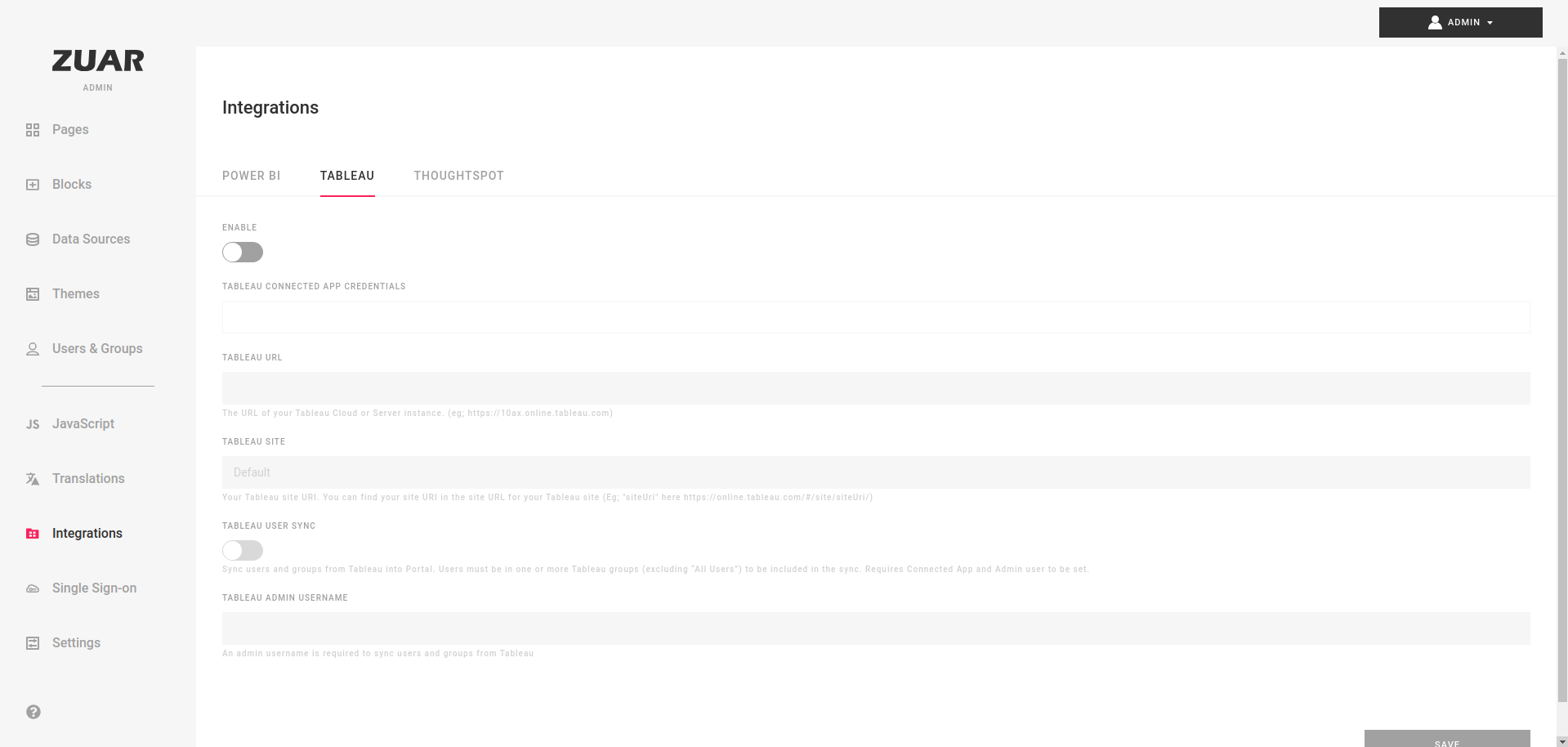
- Enable Tableau integration
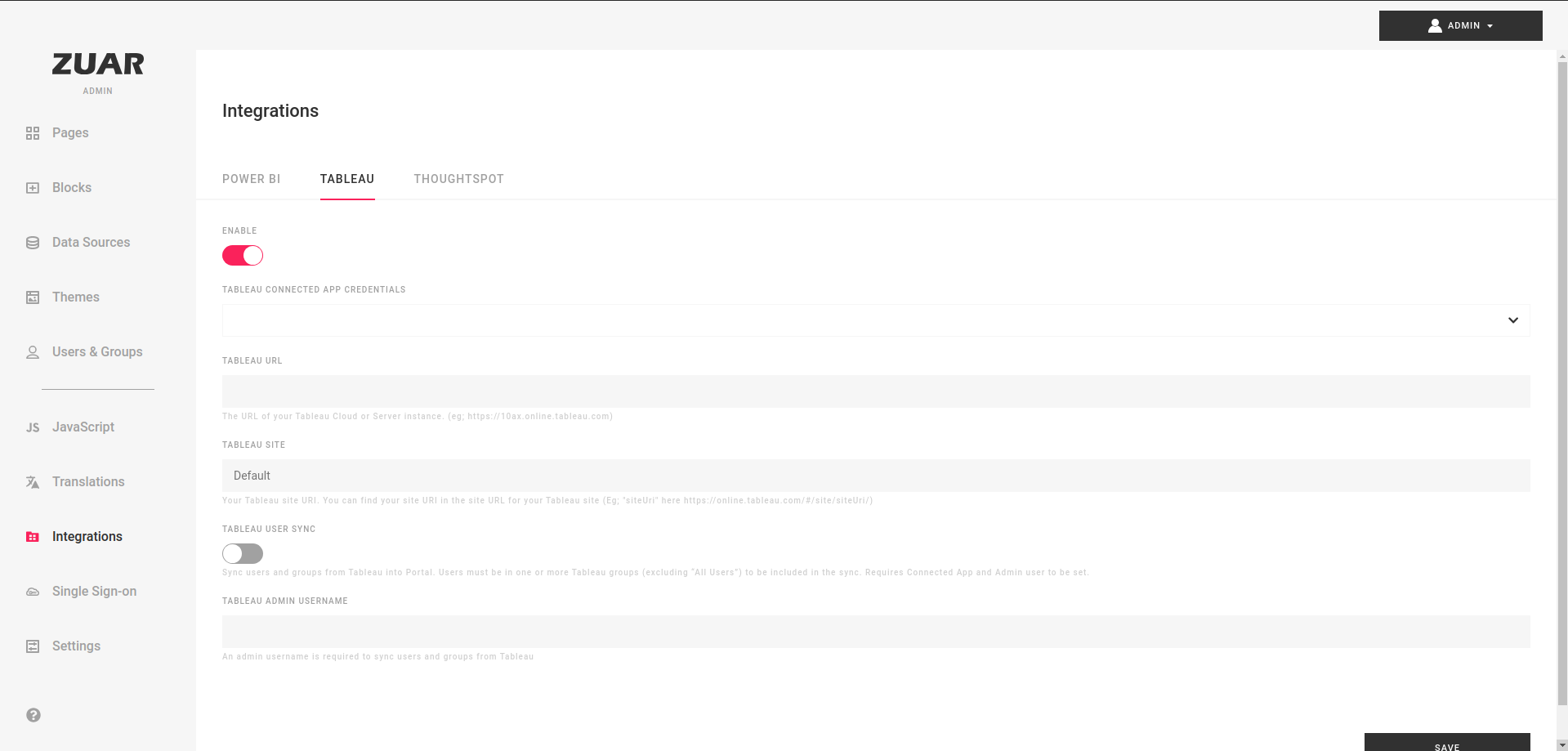
- Click on
Tableau Connected App Credentialsfield to open dropdown and click+ Create New Credentials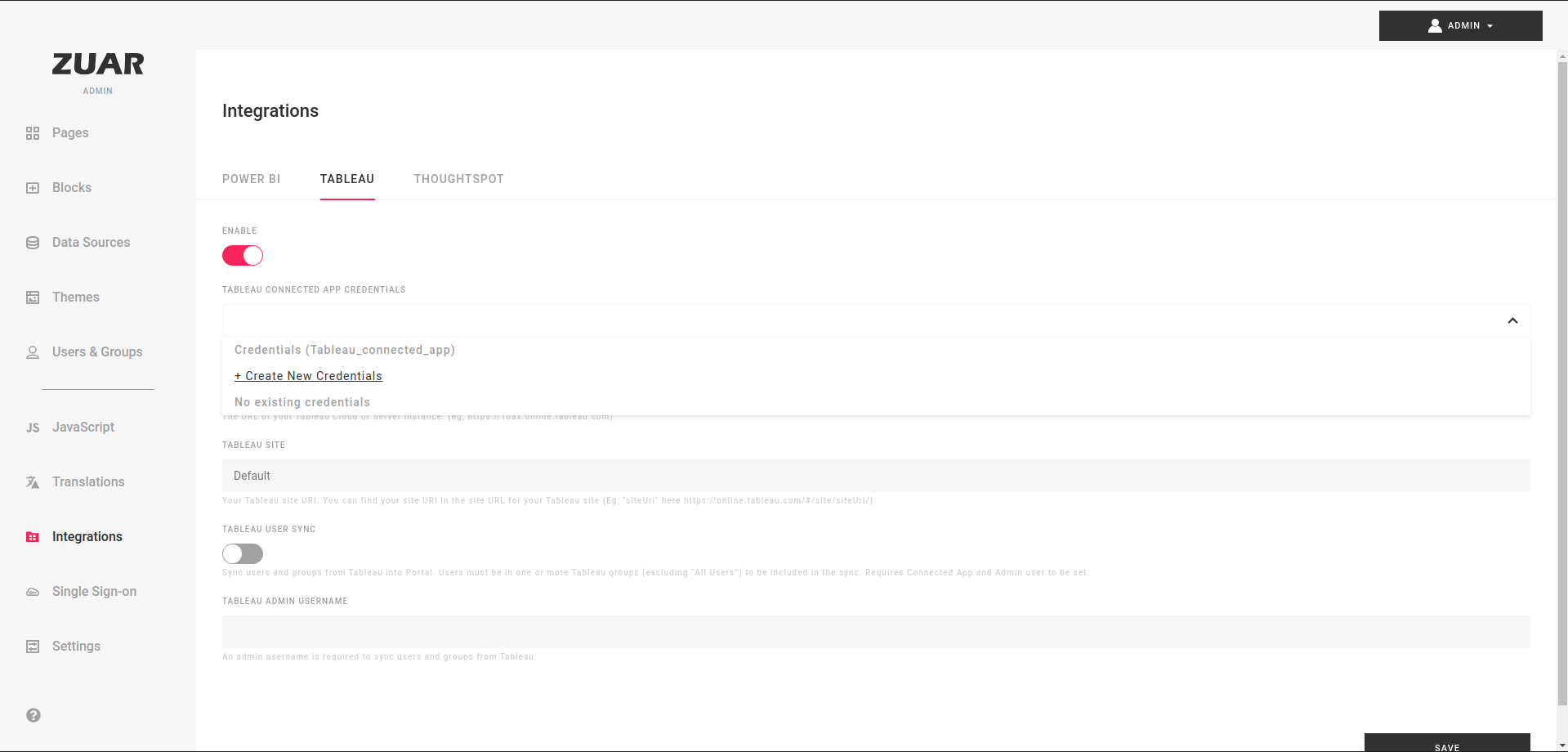
- Enter values that were collected on Create Connected App step.
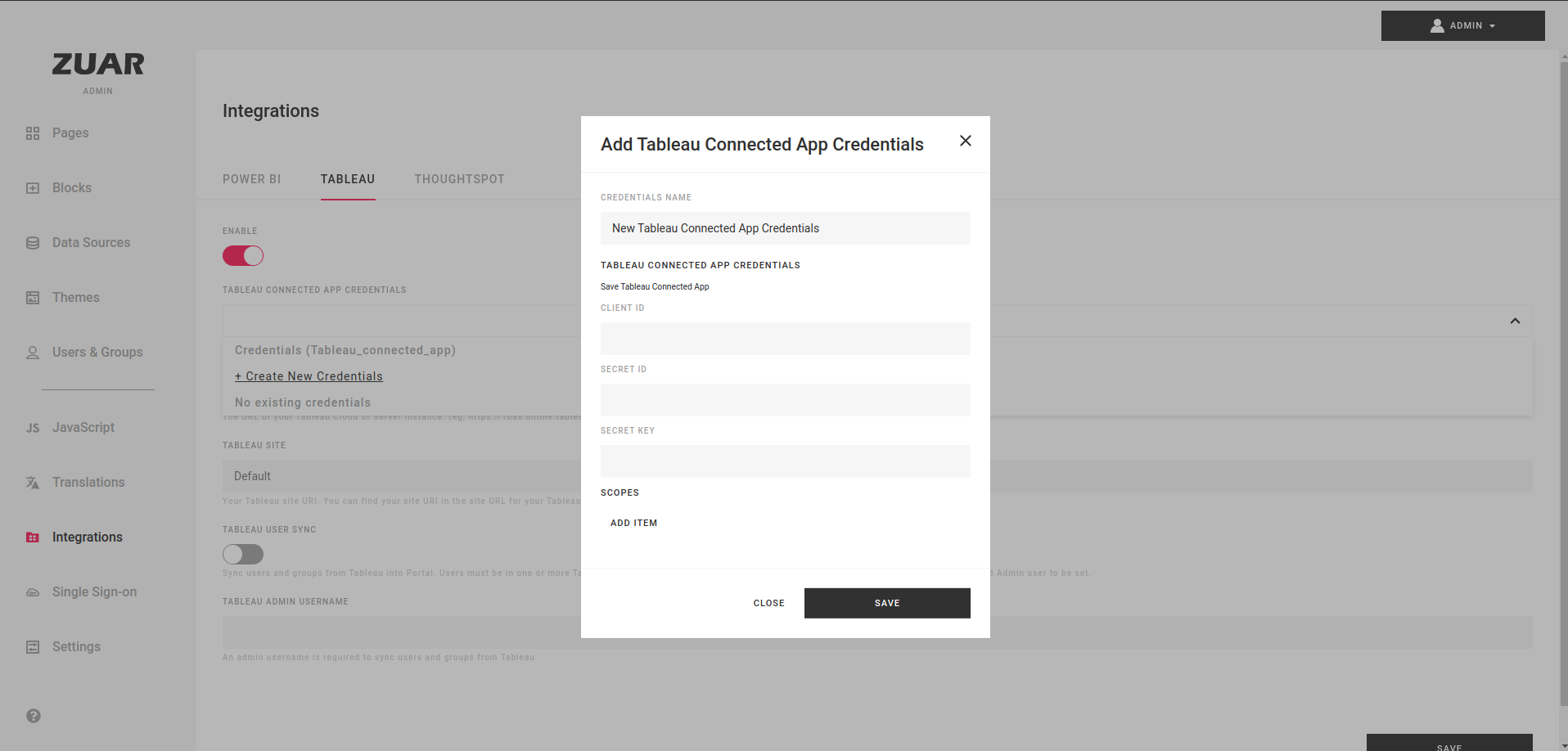
- Fill
Tableau URLandTableau Sitefields.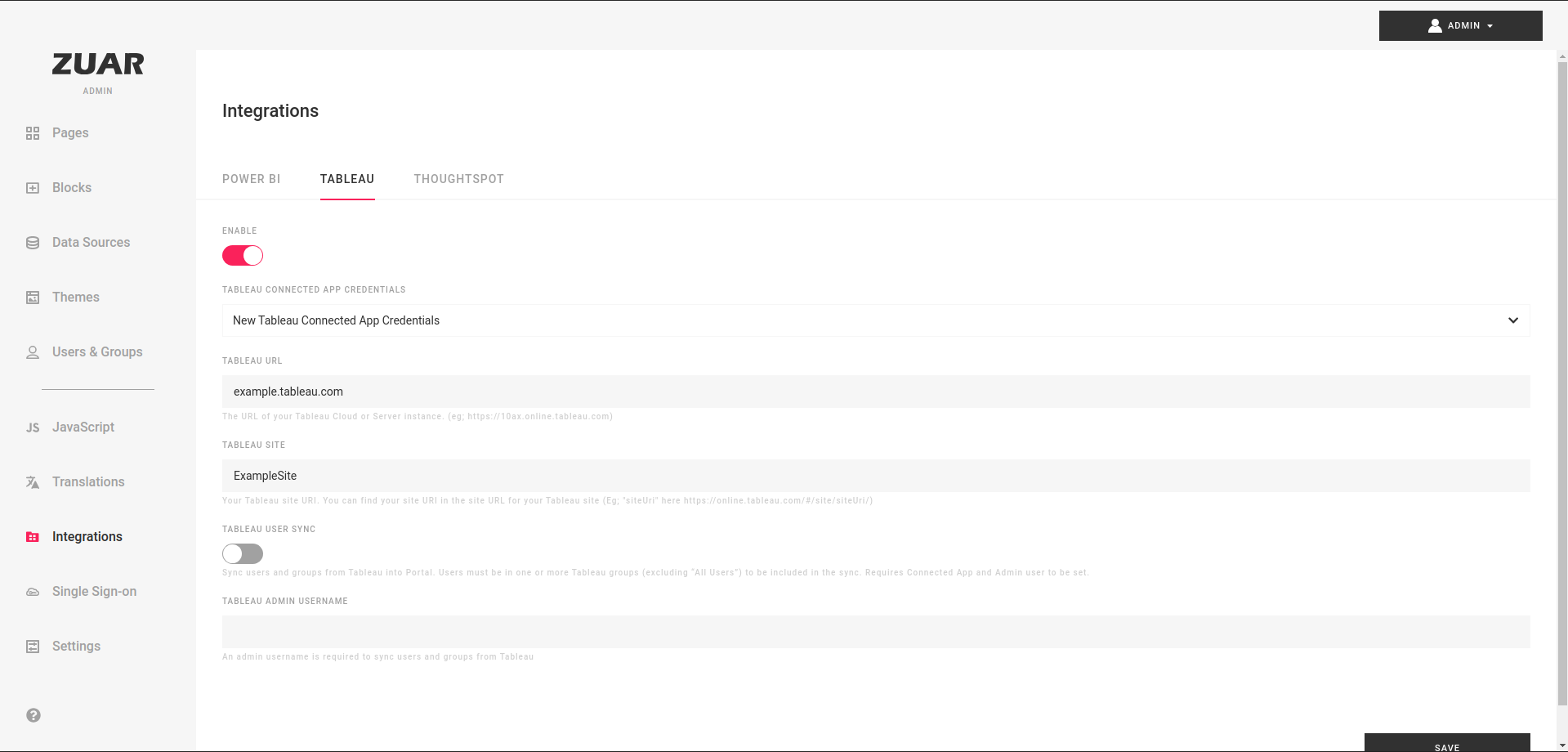
- Click
Save - This is it! Your Tableau integration is complete.
Portal User Sync
Portal provides an ability to synchronize users and groups data. Portal will create users, groups and their relationships within the Portal infrastructure.
- Follow all steps described in Portal Tableau Integration.
- Toggle
Tableau user synccheckbox and enter a username of user with Admin premissions.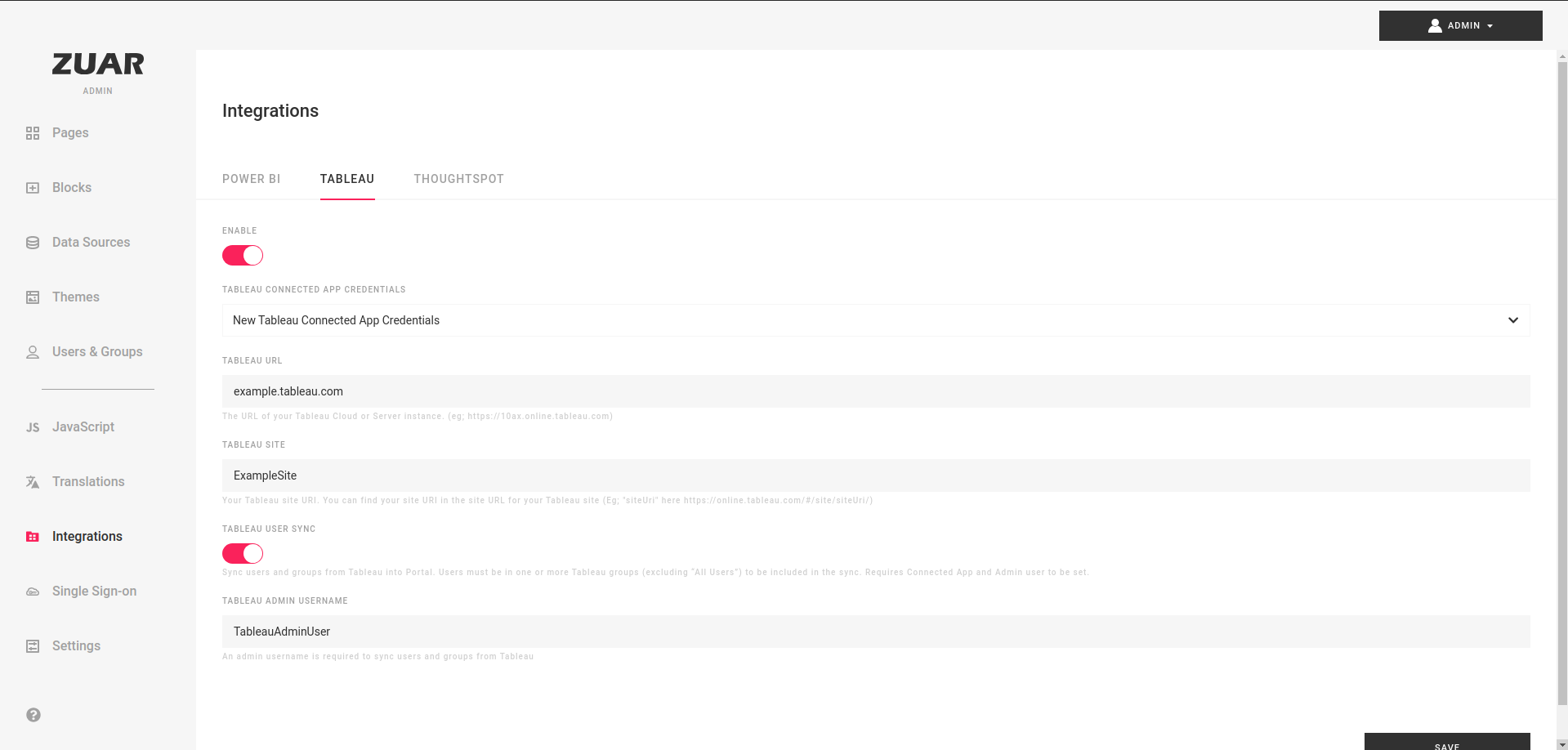
- This is it! Tableau will run throught sync proccess periodically.